Interface speed and physical toughness decide most purchases. Match the drive to your device's port: USB 3.2 Gen 2 for everyday work, Thunderbolt or USB4 for sustained 4K editing. Then check drop and water resistance for bag carry. Buy the fastest drive your port supports, not the fastest drive on the shelf.
The Port on Your Laptop Sets the Real Speed Limit
A portable SSD cannot transfer faster than the port you plug it into. A USB 3.2 Gen 2 port tops out near 10 Gbps, which translates to roughly 1,000 MB/s in real file moves. A Thunderbolt 3, Thunderbolt 4, or USB4 port can push beyond 2,000 MB/s with a matching drive.
Check your computer's port before reading speed claims on a drive. A drive rated for 2,000 MB/s plugged into a 10 Gbps USB port will still only move files at that port's ceiling. Paying for extra speed you cannot use is the most common budget mistake in this category.
For most backups, photo transfers, and general work, a 10 Gbps drive feels fast. Video editors working directly from the drive with 4K or higher footage benefit from Thunderbolt or USB4, but only if their laptop or desktop has that port.
Durability Is About Your Bag, Not the Spec Sheet
All portable SSDs survive normal desk use. The difference appears when the drive lives in a backpack with keys, a water bottle, or a laptop edge pressing against it. Look for a stated drop rating, often given as a height in meters, and an ingress protection rating like IP65 or IP67 for dust and water.
A bare stick style drive has no meaningful protection. A card style drive in a metal shell shrugs off minor drops but not a full water bottle leak. Rugged style drives add thick rubber bumpers and sealed ports, at the cost of extra size and weight.
If the drive stays on a desk or in a padded laptop sleeve, a slim card style is enough. If it goes in a tool bag, camera bag, or checked luggage, choose a rugged style with a sealed USB-C port.
Capacity Follows Your Working File Size
Figure out the largest folder you need to move or keep live, then double it. A student backing up documents and photos rarely needs more than 1 TB. A photographer shooting raw files can fill 1 TB in a few sessions. A video editor working with proxy files may need 2 TB or more just for current projects.
Internal NAND flash costs more at higher capacities, but portable SSDs do not use consumable parts. There is no long term cost beyond the initial purchase. Buy the capacity that holds your active work plus one full backup, not the capacity that fits a one time archive.
If your archive is larger than your budget, pair a smaller portable SSD with a cheaper external hard drive for cold storage. Keep the SSD for files you open daily and the hard drive for files you only need in an emergency.
Design Types Trade Size for Protection
| Design | Typical weight | Drop protection | Suits |
|---|---|---|---|
| Stick style | Under 50 g | None to minimal | Desk use, occasional carry |
| Card style | 50 to 100 g | Basic metal or plastic shell | Laptop bag, daily commute |
| Rugged style | 150 to 300 g | Rubber bumpers, sealed port | Camera bag, field work, travel |
| Enclosure style | Depends on drive | Varies by case | Users with a spare NVMe drive |
Stick style drives are the smallest and lightest but have no room for a protective shell. A hard knock can crack the USB connector right off the board.
Enclosure style drives let you bring your own NVMe SSD, which can be cheaper if you already own the drive, but the enclosure's own protection and heat dissipation decide how durable the final unit is.
The Heat Problem Nobody Mentions
Sustained transfers make portable SSDs hot. A metal card style case acts as a heat sink and keeps speeds steady during a long video export. A plastic stick style drive may throttle after a few minutes of continuous writing, dropping to a fraction of its rated speed.
If you move large video files or run backups that take more than a few minutes, pick a drive with a metal body or a stated thermal design. If the listing mentions a heatsink or thermal pad, that is a practical feature, not marketing.
For short bursts like copying a few documents, heat never matters. For a two hour backup or editing directly from the drive, heat decides whether the rated speed holds up.
Read the Listing Before You Pay
Check three things in the listing. First, the interface: it should say USB 3.2 Gen 2, Thunderbolt 3, Thunderbolt 4, or USB4, not just USB-C. USB-C is only the connector shape and tells you nothing about speed.
Second, the included cable. Some drives ship with a short USB-C to USB-C cable only. If your computer has only USB A ports, you need a drive that includes a USB A adapter or cable, or you will buy one separately.
Third, the rated capacity versus usable capacity. A 1 TB drive formats to about 930 GB. That is normal and not a defect. If the listing does not state the drop rating or ingress protection, assume there is none.
Ask the seller for the sustained write speed, not just the peak speed printed on the box. Peak speed lasts a few seconds. Sustained speed is what you get after the cache fills, and it is the number that matters for large transfers.
Who Should Skip a Portable SSD
If you need to archive several terabytes and rarely open the files, an external hard drive costs far less per terabyte. A external hard drive for rough travel can take drops that would destroy a cheap stick SSD, though it is slower and heavier.
If your computer has an open M.2 slot and you never move the drive, an internal NVMe SSD is faster and cheaper per gigabyte than a portable drive in an enclosure. Use a NVMe enclosure only when you already own the drive and need it portable.
If your files live on a home network and you access them from several devices, a NAS for reliable backups may serve you better than a pocket drive you plug into one machine at a time.
Portable SSD Questions Worth Asking
Is a portable SSD worth it over a flash drive?
For files over a few gigabytes, yes. A portable SSD sustains much higher write speeds and has a proper controller that handles many small files without stalling. A cheap USB flash drive often drops to 20 or 30 MB/s after a minute of writing, while a portable SSD holds hundreds of MB/s.
Which portable SSD is fastest for video editing?
A Thunderbolt 3, Thunderbolt 4, or USB4 drive paired with a matching port on your computer. Look for a sustained write speed of at least 1,000 MB/s for 4K editing, and a metal body to avoid thermal throttling during long renders. The port on your machine is the limiting factor first.
What is the real difference between USB 3.2 and Thunderbolt?
USB 3.2 Gen 2 tops out near 10 Gbps, while Thunderbolt 3 and 4 and USB4 run at 40 Gbps. In practice, a 10 Gbps drive moves a 50 GB folder in about a minute. A 40 Gbps drive can do it in under 30 seconds, but only if your computer has a 40 Gbps port.
Can a portable SSD survive being dropped?
It depends on the design. A stick style drive has no drop protection and can break from a waist height fall onto concrete. A rugged style drive with rubber bumpers and a stated drop rating of 2 meters or more will usually survive. Check the listing for a drop rating and an IP rating for water and dust.
Does a portable SSD need a heatsink?
Only for sustained work like video editing or large backups. Short file copies finish before heat builds up. A metal card style case acts as a passive heatsink and is enough for most people. An active heatsink with a fan is rare and usually unnecessary in this product type.
The Portable SSD to Pick for Your Bag
A photographer or student who carries a laptop daily should buy a card style portable SSD with a metal shell, a USB 3.2 Gen 2 interface, and 1 TB of capacity. It balances speed, size, and basic drop protection. A video editor working with 4K footage on a Thunderbolt equipped laptop should instead buy a Thunderbolt or USB4 drive with a metal body and at least 2 TB, and accept the extra weight for sustained speed.
Real portable ssd listings, so you can check the points in this guide against actual products. These are affiliate links: as an Amazon Associate we earn from qualifying purchases, at no extra cost to you.
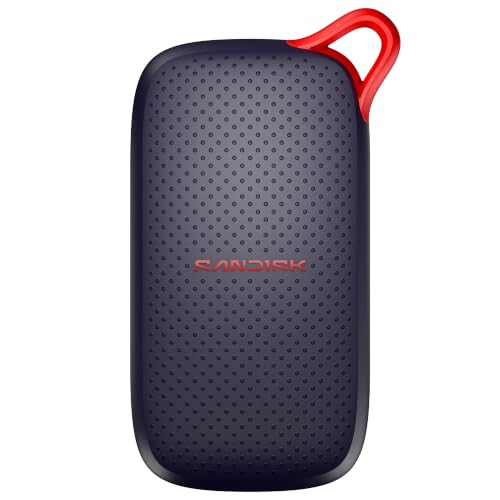 SANDISK SANDISK 1TB Portable SSD, Up to 1000MB/s Read Speeds, Black…
View on Amazon ↗
 SSK SSK Portable SSD 1TB External Solid State Hard Drive USB…
View on Amazon ↗
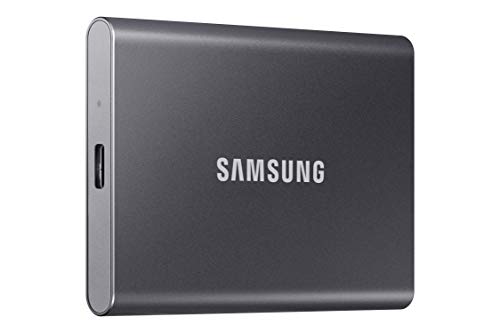 SAMSUNG Samsung T7 Portable SSD 1TB Titan Gray, USB 3.2 Gen…
View on Amazon ↗
Listing names and images come from Amazon and are rechecked against the live listings; last checked Nov 8, 2026. No prices shown; the current price is on the listing.
How to read this guide. This guide covers portable SSD design and feature tradeoffs in general, not specific models. It is written from category knowledge without reading individual product documents or reviews, so verify any dimension or rating on the listing before you buy.