The number of drive bays, RAID support, and processor speed decide most NAS purchases. A two bay unit suits simple backups and home media. A four bay or larger unit with a faster processor handles video editing, multiple users, or frequent file transfers. The main tradeoff is data safety against cost and setup effort.
Drive Bays Set Your Ceiling
A NAS storage device holds hard drives or SSDs in bays. The number of bays fixes your maximum capacity and your RAID options. A one bay unit stores files on a single drive, with no protection if that drive fails. A two bay unit can mirror two drives, so one drive can die without losing data. Four bay and larger units support RAID 5 or RAID 6, which spread parity data across drives and survive one or two failures.
Check the listing for the number of bays and the largest drive size each bay accepts. A two bay NAS with two 8 TB drives in mirror mode gives you 8 TB of usable space, not 16 TB. If you plan to add drives later, leave an empty bay from the start.
For photographers and video editors, a four bay unit with RAID 5 often makes sense. The parity overhead costs one drive of capacity, but a single drive failure does not stop work. Student backups usually fit a two bay unit in mirror mode, which is cheaper and simpler.
RAID Modes Are the Real Safety Switch
RAID is a way to combine drives for speed, redundancy, or both. Two RAID modes matter most in a NAS storage device. RAID 1 mirrors two drives, so every file exists on both. RAID 5 stripes data and parity across three or more drives, so one drive can fail without data loss. Some units also offer RAID 6, which survives two drive failures, and RAID 10, which mirrors and stripes for speed plus redundancy.
A RAID mode is not a backup. It protects against a drive dying, not against accidental deletion, ransomware, fire, or theft. Keep a separate copy of important files on an external drive or cloud service. Check whether the NAS supports the RAID level you want before buying, because some budget units only offer RAID 0 and RAID 1.
RAID rebuilds after a drive replacement can take many hours. During that time, a second drive failure can destroy the array. Larger drives take longer to rebuild, so a four bay unit with 10 TB drives may need a full day. This is a practical reason to choose RAID 6 or keep a spare drive on hand for critical data.
The Processor Decides What the Box Can Do
A NAS storage device has a small computer inside. The processor and memory determine how fast it copies files, streams video, indexes photos, or runs extra apps. A slow processor works fine for nightly backups of a few hundred files. A faster processor helps when several people stream 4K video, edit photos directly on the NAS, or run surveillance camera recording at the same time.
Memory is the second part of this. 2 GB of RAM is enough for basic file sharing. 8 GB or more helps with many simultaneous connections, virtual machines, or large photo libraries. Some units let you add RAM later, which is cheaper than buying a higher end model up front.
Check the listing for the CPU model and RAM amount. A quad core processor with 4 GB of RAM handles most home and small office tasks. If you plan to run many apps, look for a unit with an upgradable RAM slot and a processor with a higher clock speed.
| Bay count | Typical RAID | Best for | Setup effort |
|---|---|---|---|
| One bay | None | Single user file storage | Low |
| Two bay | RAID 1 mirror | Student backups, home media | Low to medium |
| Four bay | RAID 5 or 6 | Photographers, video editors | Medium |
| Five bay or more | RAID 6, 10, hot spare | Small offices, heavy users | High |
Bay count and RAID level are linked. A two bay unit cannot do RAID 5, because RAID 5 needs at least three drives. A four bay unit can do RAID 10 with four drives, which gives speed and redundancy but uses half the raw capacity.
Network Speed Shapes Daily Use
A NAS storage device connects to your router or switch with an Ethernet cable. The port speed sets the ceiling for file transfers. Gigabit Ethernet moves about 110 MB per second in practice. Some higher end units have 2.5 Gigabit or 10 Gigabit ports, which help video editors move large files or multiple people stream at once.
Look for link aggregation support if your router or switch supports it. Two Gigabit ports bonded together can roughly double throughput for many users. A single fast port is simpler and often enough for a home.
Wi-Fi is not the main connection for a NAS. Some units support USB Wi-Fi adapters, but wired Ethernet is far more reliable for large transfers. Place the NAS near the router or use a long Ethernet cable. If you plan to edit video directly from the NAS, a 2.5 Gigabit or faster port is worth the extra cost.
A network switch built for wired connections keeps a NAS responsive when several devices copy files at once. Compare the switch port speed to the NAS port speed before buying either.
Drive Choice Changes Noise, Heat, and Lifespan
The drives you put inside a NAS matter as much as the box. NAS rated hard drives are built to run 24 hours a day, handle vibration from neighboring drives, and tolerate the heat of a small enclosure. Desktop drives often fail sooner in a NAS because they are not designed for constant spinning or tight spacing.
SSDs are silent, fast, and use less power, but they cost more per terabyte. They make sense for a small, quiet NAS in a bedroom or for tasks that need low latency, like photo editing. Hard drives give far more capacity for the money, which suits backups and media libraries.
Noise is a real issue. Multiple hard drives spinning and seeking can be loud in a quiet room. Check the listing for noise ratings or look for units with rubber drive mounts and fan control. A NAS in a living room or bedroom may need quieter drives or an SSD only setup.
Apps and Bays Make It a Home Media Server
Many people use a NAS storage device as a home media server. The unit runs software that streams video, music, and photos to TVs, phones, and computers. A faster processor and more RAM help when several people stream at once or when the NAS transcodes video to a format a device can play.
Check the app support before buying. Some units have built in media server apps, photo organization tools, and backup clients for Windows, macOS, and phones. Others require third party apps or manual setup. If you want automatic phone photo backup, confirm the NAS maker offers a mobile app for your operating system.
For a student, a two bay NAS can hold class files, a music library, and a movie collection. For a household that streams 4K movies to three rooms at once, a four bay unit with a faster processor avoids stuttering. The bay count and processor matter more than marketing words like 'media optimized'.
Setup Is a Project, Not a Plug In
A NAS storage device is easier than building a server, but it is not as simple as an external hard drive. You install drives, connect Ethernet, power on, and use a web browser or app to create storage volumes and choose RAID. The first setup can take an hour or more for a beginner.
Mistakes happen during setup. Choosing the wrong RAID level, forgetting to format drives, or skipping a firmware update can cause problems later. Read the quick start guide and follow the RAID advice in the software. If you want a simple backup, a two bay unit in mirror mode is the least complicated safe setup.
Some listings advertise 'one click setup' or 'zero configuration'. In practice, you still need to make choices about users, shared folders, and backup schedules. Budget extra time for the first configuration and for moving existing files onto the NAS.
Who Should Skip a NAS and Use a Simpler Drive
A NAS storage device is not the right answer for everyone. If you back up one laptop once a week, an external hard drive is cheaper, smaller, and easier. If you travel often and need files on the go, a portable SSD or cloud storage makes more sense than a box left at home.
If you only need to share a few files with one other person, a cloud folder or a USB drive may be enough. A NAS pays off when several devices need the same storage, when you want automatic backups from multiple computers, or when you want a media library that stays on all the time.
Consider a direct attached drive or a cloud subscription if you do not want to manage RAID, firmware updates, or network settings. A NAS is a small always on computer, and it needs occasional attention. If that sounds like a burden, choose a simpler backup method.
NAS Storage Questions Worth Asking Before You Buy
Is a NAS storage device worth it for home use?
It is worth it if you have multiple devices, large media libraries, or automatic backup needs. A two bay NAS in mirror mode gives a safe central place for family photos and files. If you only back up one laptop, an external drive costs less and does the same job with less setup.
What is the difference between a NAS and an external hard drive?
An external hard drive connects to one computer at a time over USB. A NAS storage device connects to your network, so many devices can use it at once. A NAS also runs its own software for backups, media streaming, and user accounts, which an external drive cannot do.
How many drive bays do I need in a NAS?
Two bays are enough for most home users who want mirrored protection. Four bays suit photographers, video editors, or families who want RAID 5 and room to grow. One bay gives no redundancy and is best only for temporary or non critical files.
Can I use a NAS storage device for video editing?
Yes, but look for a unit with a fast processor, at least 4 GB of RAM, and a 2.5 Gigabit or faster Ethernet port. A four bay unit with RAID 5 gives speed and protection. Editing directly from a slow NAS over Wi-Fi will feel laggy compared to a local SSD.
Which RAID level should I choose for a NAS?
Choose RAID 1 for a two bay unit, because it mirrors your data. Choose RAID 5 for a four bay unit, because it protects against one drive failure while using most of the capacity. RAID 6 adds a second parity drive for larger arrays. RAID is not a backup, so keep a separate copy of important files.
Which NAS Storage Device Fits Your Files
A home user backing up a laptop and streaming movies should start with a two bay NAS in RAID 1, with two NAS rated hard drives of equal size. A photographer or video editor who needs fast direct access and protection against a drive failure should step up to a four bay unit with RAID 5, a 2.5 Gigabit port, and at least 4 GB of RAM.
Real nas storage device listings, so you can check the points in this guide against actual products. These are affiliate links: as an Amazon Associate we earn from qualifying purchases, at no extra cost to you.
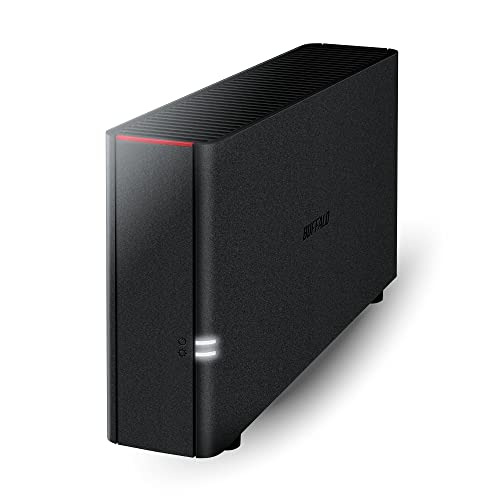
Listing names and images come from Amazon and are rechecked against the live listings; last checked Nov 8, 2026. No prices shown; the current price is on the listing.
What this guide is. This guide explains NAS storage devices as a category, based on general knowledge of drive bays, RAID, processors, and network behavior. It does not cover individual models, and you should verify dimensions, port speeds, and drive compatibility on the listing before buying.