Match the enclosure to your computer's port first, then to how hard you push the drive. Thunderbolt or USB4 suits video editing and sustained transfers; USB 3.2 at 10Gbps or 20Gbps covers most backups. Cooling design and drive fit matter next. A poor thermal path throttles the drive in minutes, and a sloppy fit risks damage.
Check the Port on Your Computer Before the One on the Enclosure
An enclosure cannot add speed your computer's port does not have. Look at the physical connector and the protocol it carries. USB-C does not tell you the speed; it is only the shape. The same USB-C port may run USB 3.2 at 5Gbps, 10Gbps, 20Gbps, USB4, or Thunderbolt.
Thunderbolt 3 and 4, and USB4, pass through the fastest NVMe speeds with the lowest overhead. USB 3.2 Gen 2x2 at 20Gbps is the practical ceiling for many mid range enclosures. Plain USB 3.2 Gen 2 at 10Gbps caps real transfers around 1,000MB/s, which is still far faster than a SATA SSD but well below a modern NVMe drive's potential.
Match the enclosure to the port you will actually use most. A Thunderbolt enclosure on a USB 3.2 port works, but it behaves like a USB enclosure and costs more. A 10Gbps enclosure on a Thunderbolt port leaves drive performance unused. For a laptop you upgrade every few years, a Thunderbolt or USB4 enclosure may outlast the machine, while a 10Gbps one is cheaper now.
The cable is part of the port decision. A Thunderbolt enclosure needs a Thunderbolt rated cable; a 20Gbps enclosure needs a cable rated for that speed. The cable included with some enclosures is the first bottleneck. Check the listing for the cable's rated speed, not just its connector.
Cooling Decides Whether the Speed Lasts Past the First Minute
NVMe drives generate heat fast under sustained writes. When the controller hits its thermal limit, the drive slows itself down, sometimes to SATA speeds or lower. That throttling is not a defect in the drive or the enclosure; it is the design protecting the hardware. The enclosure's job is to move heat away fast enough to delay or avoid that.
Aluminum is the common cooling material because it conducts heat well and is cheap to machine. A thick aluminum body with fins gives more surface area for heat to leave. An internal thermal pad bridges the drive's controller and flash chips to the case. Without a good pad or direct contact, the metal shell does little.
Small plastic enclosures and open frame slide in designs look convenient but trap heat around the drive. They suit short bursts: moving a few photos, a quick backup, a game install. For video editing or a full drive clone, the drive may throttle within minutes. A fan inside the enclosure solves that but adds noise, pulls in dust, and needs power from the port, which some phones and tablets cannot provide.
Compare the enclosure's mass and materials. A heavier aluminum shell is a clue to better heat capacity. Check whether the listing includes a thermal pad and whether the pad touches both the drive and the case. If the enclosure is tiny and sealed, expect throttling on long transfers regardless of the marketing speed printed on the box.
| Design type | Cooling approach | Install effort | Sustained load | Suits |
|---|---|---|---|---|
| Tool free aluminum sled | Metal case with thermal pad | Low, no screwdriver | Good for most large transfers | Everyday backups and editing on the go |
| Screw down aluminum | Case contact plus thermal pad | Moderate, needs screwdriver | Good, slightly better contact | Fixed desk or semipermanent use |
| Open frame slide in | Minimal case contact | Very low, bare drive exposed | Poor, throttles quickly | Quick tests and occasional short jobs |
| Active fan enclosure | Fan plus heatsink | Moderate | Excellent, holds peak speed | Long renders, clones, heavy editing |
Drive Fit and Tooling Shape Every Swap
Most enclosures take M.2 NVMe drives in the common 2280 length, meaning 22mm wide and 80mm long. Many also support shorter 2242, 2260, and 2230 drives with a movable standoff or screw post. Check the enclosure's supported lengths if you plan to reuse a drive from a laptop or handheld console, since those are often 2230 or 2242.
Check whether the drive is M key or B+M key. NVMe drives are almost always M key, with one notch, but some older or budget drives are SATA in the M.2 shape. An NVMe enclosure will not work with an M.2 SATA drive. The listing should state NVMe and PCIe, not just M.2. If it only says M.2, ask the seller before buying.
Tool free enclosures use a sliding tray, a magnetic lid, or a push pin instead of screws. They save time if you swap drives often, but the mechanism can wear or feel loose. Screw down designs are more secure and often make better thermal contact, but a lost screw or a stripped thread ends the job. For a drive that stays inside for months, screws are fine. For a drive you move between machines weekly, tool free matters.
Look at how the drive is held at the far end. A rubber plug or plastic pin holds short drives without a screw but can flex during transport. A metal standoff and screw hold the drive flat, which keeps the thermal pad touching the case. If the drive bows upward, heat transfer suffers.
The Interface Chip Inside Matters More Than the Port on the Outside
Two enclosures can both say USB-C 10Gbps and perform differently because they use different bridge chips. The bridge chip converts USB data to PCIe for the drive. Common chips include those from Realtek, ASMedia, and JMicron. Some chips run cooler, some support TRIM pass through better, and some have firmware that drops connections under load.
TRIM support matters over time. TRIM lets the drive tell the enclosure which blocks are free, which keeps write speeds from degrading after the drive fills up. Most modern bridge chips support TRIM over USB, but not all operating systems pass it through. Check the listing for TRIM or UASP support. UASP is the fast USB storage protocol; without it, transfers use the older, slower BOT mode.
You cannot judge the chip from the case. Two enclosures with the same aluminum shell may have different chips inside depending on the production batch. This is why a model number alone is not enough. If the listing names the bridge chip, that is a sign the seller is precise. If it only promises a speed, treat that speed as the ceiling, not the guarantee.
Firmware updates are rare on enclosures. Unlike a drive, an enclosure seldom receives a firmware fix. A chip with a known disconnect issue stays that way. For that reason, a design with a stable, widely used bridge chip is a safer bet than a brand new chip with a higher number on the spec sheet.
Bus Power and Cable Length Limit Where It Works
Most enclosures draw all power from the USB port. Fast NVMe drives can spike over 5W under load. A laptop, a phone, or a tablet may not deliver that consistently. The result is a dropped connection mid transfer, not a clean error. Desktops and powered hubs handle this better.
Check the enclosure's power draw in the listing. Some list a maximum wattage or note that a phone needs external power. If you plan to connect to an iPad, a phone, or a game console, choose an enclosure rated for low power or one that includes a second USB power cable. That second cable often plugs into another port just for power while data flows through the first.
Cable length affects stability more than speed. A short, thick cable drops less voltage and keeps the connection reliable. A long, thin cable may cause the drive to disconnect under load even though the port is fine. Most enclosures come with a short cable for this reason. If you need length, buy a high quality cable rated for the same speed and with proper shielding.
A few enclosures include a separate power adapter and do not rely on bus power at all. These are larger and less portable, but they run a fast drive without flinching. That matters for a home media server or a drive dock that stays in one place. For travel, bus power is the point.
The Mistakes That Turn a Fast Drive Into a Slow Paperweight
The most common mistake is buying an enclosure for the wrong drive type. M.2 is a form factor, not a protocol. An M.2 SATA drive will not work in an NVMe enclosure, and an NVMe drive will not work in a SATA enclosure. The notch position is the clue: NVMe M key drives have one notch near the connector, while SATA M.2 drives have two notches. Never rely on the label alone.
Another mistake is ignoring heat. People buy a fast drive, put it in a tiny plastic enclosure, and wonder why a 100GB transfer starts at 900MB/s and ends at 90MB/s. The drive is throttling. A thermal pad costs pennies and a metal case costs a few dollars more. If the enclosure comes without a pad, buy one separately and make sure it contacts the controller, which is the hottest chip.
Some buyers reuse a drive from a dead laptop without checking its health. A drive that was failing inside the laptop will fail inside the enclosure, and the enclosure gets blamed. Check the drive's SMART data before installing it. If the drive reports a high temperature, reallocated sectors, or a worn out percentage, do not trust it with a backup.
Forgetting to format the drive is a small but real trap. A new drive may arrive uninitialized or with a filesystem another OS cannot read. Windows, macOS, and Linux use different default formats. If the drive does not appear, check Disk Management or Disk Utility before assuming the enclosure is faulty. Formatting erases data, so do this before loading the drive with files.
Treating the enclosure as waterproof or shockproof because it has a metal shell is a mistake. Aluminum dents, the USB port bends, and the drive inside is still a bare circuit board. A padded sleeve or a hard case matters for travel. An enclosure with an IP rating is rare; most are not sealed against dust or moisture.
Use Cases Where an Enclosure Shines, and Where a Different Tool Fits
For student backups, an NVMe enclosure turns a spare drive into a fast external disk for assignments, projects, and a full system image. The speed makes a weekly backup quick enough to actually happen. A tool free enclosure helps when moving between a dorm desktop and a library laptop.
Photographers moving thousands of RAW files after a shoot benefit from the sustained speed of a metal enclosure with good cooling. A card reader plus an NVMe enclosure offloads a 64GB card in minutes. Look for a design with a sturdy USB-C port, because repeated plugging is where cheap connectors fail.
Video editors working directly from the external drive need Thunderbolt or USB4, not USB 3.2. Editing 4K or 6K footage from a 10Gbps enclosure stutters and drops frames. A fan cooled enclosure or a large heatsink design keeps the drive at full speed through a long render.
For a home media server, a single NVMe enclosure is often the wrong shape. Media libraries grow past a few terabytes, and NVMe capacity costs far more per gigabyte than a spinning drive or a SATA SSD. A multi bay NAS or a large external hard drive fits that job better. An NVMe enclosure suits the server's boot drive or a cache drive, not the library itself.
Travel use favors a small, light, tool free enclosure that draws low power. It should survive a bag's jostling without the drive rattling loose. A short, thick cable is easier to pack than a long one. Skip the fan for travel; it adds weight, noise, and a point of failure.
For anyone who needs a lot of storage at low cost, a portable hard drive or a SATA SSD is a better choice. NVMe enclosures make sense when you already own a drive or when speed is the whole point. If you are buying both drive and enclosure new, a factory made portable SSD is often cheaper, smaller, and already tuned for heat.
Read the Listing for These Details, Not the Marketing Headline
The headline speed on a listing is the interface maximum, not the real transfer rate. A 20Gbps enclosure never delivers 2,000MB/s of usable file copy because protocol overhead, the drive's own speed, and the computer's file system all take a cut. Expect about 80 to 90 percent of the interface speed in ideal conditions, and less for small files.
Look for the bridge chip name, the supported drive lengths, the thermal pad material, and the cable's rated speed. Ask the seller which NVMe generation the enclosure supports. Most current enclosures support PCIe Gen 3 drives, and some support Gen 4. A Gen 4 drive in a Gen 3 enclosure still works, just at Gen 3 speed. The listing should say this clearly.
Check whether the enclosure supports the drive's size and key. A listing that says M.2 NVMe 2280 is precise. A listing that says M.2 SSD might mean NVMe or SATA. If the text is ambiguous, ask before buying. A wrong purchase means a return, a restocking fee, or a drive that sits unused.
For macOS users, check whether the enclosure supports TRIM over USB. MacOS enables TRIM on some external NVMe drives but not all. Without TRIM, write speeds degrade over months of use. If the listing does not mention macOS TRIM support, search the seller's documentation or ask directly.
Check the return policy and warranty. An enclosure is a small purchase, but a bad bridge chip or a loose USB port shows up in the first week. A seller that offers a 30 day return and a one year warranty is a safer bet than one with no stated policy. Keep the original box until you have run a full drive clone or a large transfer to test stability.
NVMe Enclosure Questions That Come Up Before the Swap
Is an NVMe SSD enclosure worth it over a portable SSD?
Yes, if you already own a fast NVMe drive or want to reuse a drive from an old laptop. The enclosure alone costs less than a ready made portable SSD of the same speed. But if you are buying both drive and case new, a factory portable SSD is often smaller, better sealed, and already tuned for heat. The enclosure route wins when you have a spare drive or want to swap drives between machines.
How do I know if my enclosure will throttle my drive?
Look at the cooling design. A plastic shell or an open frame with no thermal pad will throttle a fast drive during large transfers. A thick aluminum case with a thermal pad touching the controller and flash chips holds speed much longer. If you plan long video renders or full drive clones, choose metal with fins or a fan. If you only move small files, throttling may never appear.
Which NVMe enclosure is fastest?
Thunderbolt 3, Thunderbolt 4, and USB4 enclosures carry the most bandwidth, up to 40Gbps, and show the least overhead. USB 3.2 Gen 2x2 at 20Gbps is the next step down. A USB 3.2 Gen 2 at 10Gbps enclosure is fast but caps real transfers around 1,000MB/s. The fastest interface only helps if your computer and cable support it and the drive itself is quick.
Can I use an NVMe enclosure with an iPad or phone?
Sometimes. IPads with USB-C support external drives, but they may not deliver enough power for a fast NVMe drive under load. Phones vary widely. Check the enclosure's power draw and whether it includes a second USB power cable. A low power drive and a short, thick cable improve the odds. If the listing does not mention phone or tablet support, test with a non critical file first.
Does an NVMe enclosure need a heatsink?
Not a separate one if the enclosure itself is aluminum and includes a thermal pad. The case acts as the heatsink. A bare drive in a plastic enclosure needs a heatsink added, and even then the heat has nowhere to go. For sustained writes, a metal case with good contact beats a plastic case with a fancy internal heatsink.
The Enclosure to Pick for Your Drive and Desk
For a drive that lives in one bag or on one desk, pick a tool free aluminum sled enclosure with USB 3.2 Gen 2 or 20Gbps and a thermal pad. It balances speed, cooling, and ease without extra cables. For a video editor running long renders off the drive, a fan cooled Thunderbolt or USB4 enclosure is the right upgrade, even though it costs more and hums.
Real nvme ssd enclosure listings, so you can check the points in this guide against actual products. These are affiliate links: as an Amazon Associate we earn from qualifying purchases, at no extra cost to you.
 SABRENT SABRENT USB-C NVMe Enclosure & Reader, M.2 PCIe SSD, 10Gbps…
View on Amazon ↗
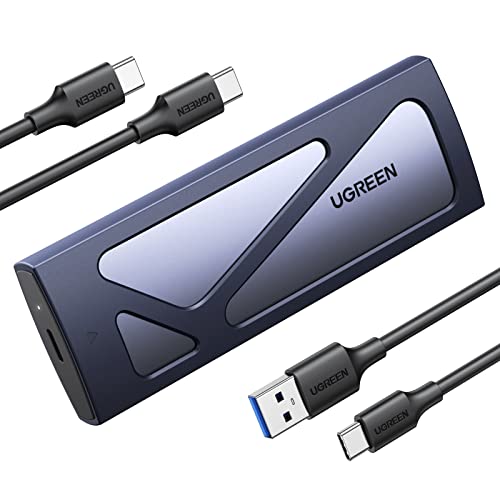 UGREEN UGREEN USB-C M.2 NVMe SSD Enclosure, 10Gbps | Tool-Free Adapter/Reader…
View on Amazon ↗
 FIDECO FIDECO M.2 NVMe SSD Enclosure, M.2 NVMe to USB Adapter,…
View on Amazon ↗
Listing names and images come from Amazon and are rechecked against the live listings; last checked Nov 8, 2026. No prices shown; the current price is on the listing.
Scope and limits. This guide is written from general knowledge of NVMe enclosures and their design tradeoffs, not from testing individual models. It cannot tell you whether a specific listing uses a stable bridge chip or a flimsy USB port, so verify the supported drive lengths and the cable speed on the product page before you buy.