Start with panel type: IPS gives consistent color off to the side, VA adds contrast, TN is fast but narrow. Next, check power delivery, the wattage a monitor can send back to your laptop through the same cable. Finally, match the port layout to your desk: built in hub, Ethernet, or just video. Skip a USB-C monitor if your laptop already has enough ports and you mainly dock at a desk with a separate hub.
The One Cable Promise Has Three Versions
USB-C monitors do not all deliver the same one cable result. Some send video, data, and power through a single cord. Others send video and power but leave data to a separate cable. A third group only carries video, so the laptop still needs its own charger and a USB hub.
Check the listing for the phrase power delivery, often written as PD, followed by a wattage number. That number is the maximum the monitor can send to your laptop. A 15 inch laptop may need 45 to 65 watts. A 16 inch laptop with a dedicated graphics chip often needs 85 to 100 watts.
If the monitor provides less than your laptop needs, the battery drains slowly while you work. The laptop still receives video, but you end up plugging in the original charger, which defeats the reason to buy a USB-C monitor.
Panel Type Changes How a Monitor Feels at the Desk
IPS panels keep colors and contrast steady when you sit off center or stand over the desk. That matters for photo editing, design work, or two people looking at the screen together. VA panels show deeper blacks and stronger contrast for movies and games, but shift when viewed from a sharp angle. TN panels are fast and cheap, yet wash out unless you sit directly in front.
For a desk setup, IPS is the safest default. If the monitor sits in a dark room and you mostly watch video, VA may feel better. TN makes sense only for competitive gaming on a tight budget.
Ignore marketing words like enhanced color or vibrant picture. Instead, look for a stated color space coverage, such as sRGB or DCI P3, and a contrast ratio. A higher percentage of a standard color space means the screen can show more of that range, but it says nothing about calibration out of the box.
Port Layout Decides What Else Plugs In
A USB-C monitor can act as a small docking station. The useful extras are USB A ports for a keyboard, mouse, or webcam, an Ethernet jack for a wired network, and a headphone output. Some monitors also include a second USB-C port for daisy chaining another display.
Think about what currently hangs off your laptop. If you use a wireless keyboard and mouse and have strong Wi-Fi, a monitor with only video and power may be enough. If you want a wired connection and several accessories, a built in hub removes a separate box from the desk.
Check the total data speed of the hub. A monitor with USB-C video at 4K 60 Hz may reduce its USB A ports to slower speeds. That still works for a mouse or keyboard, but a fast external SSD may run below its potential.
Who Should Skip a USB-C Monitor Entirely
A USB-C monitor earns its price when it replaces a charger, a hub, and a clutter of cables. If your laptop already has enough ports and you use a separate docking station, paying extra for a USB-C monitor adds little.
Desktop towers with a dedicated graphics card often do not send video through their USB-C port, so the monitor may not work as a single cable display. Older laptops may have USB-C ports that only carry data, not video. Check whether the laptop supports DisplayPort over USB-C or Thunderbolt before buying.
If you only need a second screen for occasional use, a portable touch monitor costs less and packs away. If your desk already has a hub and you like the current setup, a standard HDMI or DisplayPort monitor keeps things simple.
Reading a Listing Before You Add to Cart
The product title often hides the important details. A listing may say USB-C monitor without stating the power delivery wattage or the refresh rate. Scroll to the specification table and look for resolution, refresh rate, panel type, and power delivery.
Resolution and screen size work together. A 27 inch monitor at 1080p shows large text but looks soft up close. A 27 inch monitor at 4K shows crisp text but needs more graphics power from the laptop. A 24 inch monitor at 1440p is a comfortable middle ground for many desk setups.
Ask the seller if the monitor supports the exact laptop model you own. Some laptops need a firmware update or a specific cable to enable video over USB-C. The cable included in the box may not support the full power delivery or data speed, so check its rating as well.
How the Panel, Power, and Ports Rank
| Decision | What changes | When it matters | Easy to check |
|---|---|---|---|
| Power delivery | Whether one cable charges the laptop | Every time you sit down | Yes, wattage in specs |
| Panel type | Viewing angle, contrast, color | Photo work, shared screens, dark rooms | Yes, listed as IPS, VA, TN |
| Port layout | Hub features, cable count | Wired accessories, Ethernet, daisy chain | Yes, port list and photos |
| Resolution and size | Text sharpness, screen space | Long reading sessions, multitasking | Yes, but check viewing distance |
Power delivery matters first because it decides the core promise of a USB-C monitor. Panel type comes second because it changes how the image looks all day. Ports and resolution refine the fit but rarely rescue a bad match in the first two.
Mistakes That Lead to a Desk Return
Buying by screen size alone is the most common error. A large monitor with low resolution makes text look blocky. A small monitor with high resolution makes text too tiny unless the operating system scales it, which can blur some apps.
Assuming every USB-C cable works is another trap. A cable rated only for charging may not carry video. A cable rated for 10 Gbps may not support 4K 60 Hz with power delivery. Use the cable included with the monitor, or buy one certified for the full feature set.
Forgetting about the laptop's graphics limits causes disappointment. An older laptop may not output 4K at 60 Hz over USB-C, so the monitor falls back to 30 Hz, which makes the mouse feel laggy. Check the laptop's video output specifications first.
Long Term Costs and Care
A USB-C monitor has no consumables, but the cable is the weak point. A damaged or underpowered cable causes flickering, slow charging, or no signal. Keep a spare certified cable if you move the monitor between desks or travel with it.
The monitor's built in hub draws a small amount of power even when the laptop is closed. If your desk has a master switch, turning off the monitor avoids a slow drain. Otherwise, the standby draw is typically under one watt.
Dust on the screen and ports is the main care task. Blow out the USB-C port with air, not a metal pin. Wipe the panel with a dry microfiber cloth. Avoid sprays that can drip into the bottom edge and damage the electronics.
Work From Home and Small Business Fit
For work from home, a USB-C monitor with power delivery and a few USB A ports makes the desk feel less like a wire nest. Meetings, documents, and spreadsheets do not need extreme color accuracy, so a mid range IPS panel at 1440p is a strong fit.
Small businesses often buy several monitors for a team. A consistent model with USB-C power delivery simplifies setup, but check that each employee's laptop supports the same wattage and video mode. Buying a mix of monitors with different panel types can make documents look inconsistent across desks.
Photo sharing and light editing benefit from an IPS panel with high sRGB coverage. A monitor that charges the laptop while showing accurate color removes the need for a separate color checker on the desk. Avoid VA panels for this use if you sit close and need consistent color across the whole frame.
USB-C Monitor Questions Before You Buy
Is a USB-C monitor worth it for a laptop?
Yes, if your laptop supports video over USB-C and you want one cable to handle display, charging, and sometimes data. The monitor must provide enough power delivery wattage for your laptop model. If your laptop has a barrel charger and no USB-C video output, a USB-C monitor adds cost without the main benefit.
Which USB-C monitor is best for a MacBook?
A MacBook with Thunderbolt 3 or 4 works with most USB-C monitors, but check the power delivery. A 13 inch MacBook Air needs around 30 to 45 watts, while a 14 or 16 inch MacBook Pro wants 85 to 96 watts. An IPS panel with high sRGB or P3 coverage matches what Mac users expect from the built in display.
What is the difference between USB-C and Thunderbolt monitors?
Thunderbolt adds higher data speed and daisy chaining, but many Thunderbolt monitors also work as plain USB-C displays. A USB-C monitor without Thunderbolt still carries video, data, and power if the laptop and cable support it. Thunderbolt matters when you want two monitors on one cable or very fast external storage through the monitor.
Can a USB-C monitor charge my laptop?
Yes, if the monitor lists power delivery and the wattage matches or exceeds what your laptop needs. A monitor with 45 watts will charge a small laptop but may only slow the drain on a larger one. The cable must also support that wattage, so use the included cable or a certified one.
How do I compare two USB-C monitors?
Put the specification tables side by side. Check panel type, resolution, refresh rate, power delivery wattage, and the number and type of USB ports. Then look at the stand: height adjustment, tilt, and VESA mount support. A monitor with a better panel but a fixed stand can be uncomfortable at a desk.
Which USB-C Monitor to Get for Your Desk
A desk worker with a modern laptop and a pile of cables should get a 27 inch IPS USB-C monitor with at least 65 watts of power delivery and two USB A ports. That covers a laptop, keyboard, mouse, and webcam in one cord. Someone with a desktop tower or an older laptop without USB-C video should skip this type and use a standard HDMI monitor with a separate hub.
Real usb c monitor listings, so you can check the points in this guide against actual products. These are affiliate links: as an Amazon Associate we earn from qualifying purchases, at no extra cost to you.
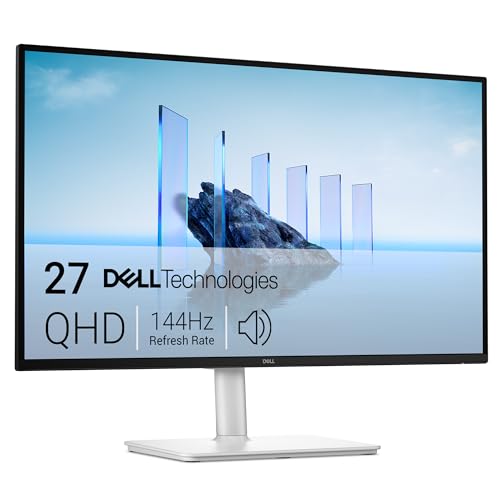 DELL Dell 27 Plus QHD USB-C Monitor - S2725DC - 27-inch…
View on Amazon ↗
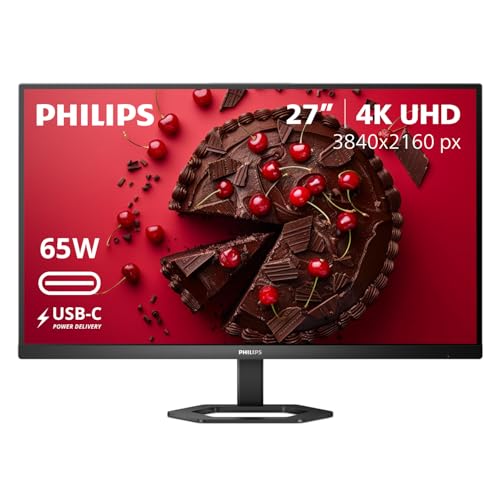 PHILIPS Philips 27" Computer Monitor 4K UHD IPS USB-C Charging HDR400,…
View on Amazon ↗
 VIEWSONIC ViewSonic VX2776-4K-MHDU 27 Inch 4K UHD Monitor, 65W USB C,…
View on Amazon ↗
Listing names and images come from Amazon and are rechecked against the live listings; last checked Nov 8, 2026. No prices shown; the current price is on the listing.
What this guide is. This guide explains how to choose a USB-C monitor as a product category. It does not cover individual models, and no product documents, reviews, or tests were used. Check any dimension or power rating on the listing before buying.