A portable touch monitor lives or dies on three checks: how it gets power, how it gets video, and whether the touch layer works with your operating system. Buyers who travel light should favor a single cable USB-C model with modest brightness. Buyers who split time between a desk and a bag should favor a kickstand design with a full size HDMI port. The main tradeoff is between a slim, dim, portable panel and a thicker, brighter, desk friendly one.
Who should skip a portable touch monitor
A fixed desk with room for a standard monitor rarely benefits from a portable panel. A larger, brighter desktop display costs less per inch and offers better color and viewing angles. If the monitor never leaves the desk, choose a conventional model.
People who mostly consume video or share photos on a tablet already own a touchscreen. A portable monitor adds a second surface but not a better one for casual viewing. A digital photo frame for family far away or a tablet stand often fills that role more simply.
Anyone who needs color critical work, such as print proofing or video grading, should look at desktop monitors with hardware calibration. Portable panels shift color with viewing angle and temperature, which makes consistent output difficult.
The listing checks that prevent a return
Open the product listing and confirm three things before anything else. First, does the USB-C port on the monitor support video input, not just power? Some portable monitors have a USB-C port that only charges the internal battery or powers the panel, while video arrives over HDMI. The listing must say 'USB-C DisplayPort Alt Mode' or 'USB-C video input'.
Second, check the power draw in watts. A laptop USB-C port often delivers 15W or less. A portable monitor that draws 10W or more may drain the laptop battery quickly or fail to power on. Look for a listing that states power consumption, or ask the seller for the wattage.
Third, confirm the touch protocol. Windows laptops typically use HID touch, which works over USB without drivers. Android phones and some Chromebooks need specific driver support. The listing should state which operating systems the touch layer supports, not just which ones the display supports.
Power and ports decide if it works at all
Most portable touch monitors fall into three power arrangements. A single cable USB-C model pulls both video and power from one laptop port. This is the cleanest setup, but it only works with laptops that output enough power and support DisplayPort Alt Mode over USB-C. Many older laptops, some budget models, and most desktops do not.
A dual cable design uses one USB-C or HDMI cable for video and a second USB cable for touch and extra power. This works with more computers but adds a cable and often requires a wall adapter for full brightness. Check whether the second cable is included and how long it is.
A model with a separate power brick and HDMI input works with almost any computer, including older laptops and desktop PCs. The tradeoff is that you carry a power brick and lose the single cable simplicity. For a desk setup that occasionally travels, this is often the most reliable choice.
Some portable monitors include a battery. This lets the panel run without draining the laptop, but adds weight and cost. For road trips or field work where outlets are scarce, a battery model makes sense. For a desk extension, skip the battery and save the weight.
Panel type changes color and viewing angle
Almost all portable touch monitors use IPS panels because they offer the widest viewing angles and the most accurate color for the size. When you share a screen with a colleague or tilt the panel on a tray table, IPS keeps the image readable from the side. A TN panel, which appears in some budget portable monitors, shifts color and contrast when viewed off center and is a poor choice for photo sharing.
Brightness matters more than resolution for a portable panel. A 1080p screen at 300 nits is often more usable outdoors or near a window than a 4K screen at 220 nits. Check the nit rating in the listing and compare it to where you plan to use the monitor. For a bright office or a car, look for 350 nits or more. For a dim home office, 250 to 300 nits is enough.
Resolution above 1080p on a 13 to 16 inch portable monitor produces small text and interface elements unless the operating system scales them. Scaling reduces the usable workspace and can make touch targets harder to hit. For most work from home and road trip use, a 1080p panel is the sweet spot.
The touch layer is not the same as the screen
A capacitive touch layer, the same technology as a phone screen, supports multi touch gestures and a light finger tap. This is the standard for portable monitors aimed at Windows and Android. If the listing says '10 point capacitive touch', the panel supports pinch, zoom, and swipe.
A resistive touch layer, found on some industrial or budget panels, requires pressure and often works with a stylus or fingernail. It supports only single touch and feels less responsive. For a desk or travel monitor used with a finger, capacitive is the better choice.
Check whether the touch layer uses USB or Bluetooth. USB touch works over the same cable as video and has lower latency. Bluetooth touch frees a port but introduces lag and pairing issues. For a portable monitor, USB touch is more reliable.
Driver support varies by operating system. Windows 10 and 11 usually recognize HID touch automatically. MacOS has limited touch support with many portable monitors; the touch layer may work as a basic pointer but not with gestures. Android support depends on the phone model and the monitor's firmware, so check the seller's compatibility list before buying.
Mounting and kickstands shape the workday
A built in kickstand adds bulk but makes the monitor usable on a desk, a tray table, or a hotel nightstand. Check the kickstand angle range. A stand that only opens to one fixed angle forces you to adjust your seating instead of the screen. Look for at least two stable angles.
A folio cover doubles as a stand and protects the screen in a bag. The tradeoff is that the cover adds thickness and the stand angle is often limited. For road trips and frequent packing, a folio cover is practical. For a permanent desk setup, a clamp style stand or a VESA mount gives more flexibility.
Some portable monitors include a VESA mount pattern, usually 75x75mm. This lets you attach the panel to a monitor arm or a wall mount at a desk. If you plan to use the monitor as a second screen at home and a travel screen on trips, a VESA pattern makes the desk setup much cleaner.
Weight and thickness matter when the monitor lives in a laptop bag. A panel under 1.5 pounds and under 10mm thick slips into most sleeves. A monitor over 2 pounds or with a thick kickstand feels heavy after a full day of travel.
How the main designs compare
| Design type | Power and video | Touch support | Brightness | Best fit |
|---|---|---|---|---|
| Single cable USB-C | One USB-C cable | Windows, some Android | 220 to 300 nits | Light travel with a modern laptop |
| Dual cable USB-C | USB-C video plus USB power | Windows, most Android | 300 to 400 nits | Brighter use with more laptops |
| HDMI plus USB | HDMI video, USB for touch and power | Windows, some Android | 250 to 350 nits | Older laptops and desktops |
| Built in battery | USB-C or HDMI plus internal battery | Windows, some Android | 250 to 350 nits | Field work and long road trips |
Single cable USB-C is the most portable but the most likely to fail with an older or lower power laptop. HDMI plus USB is the most compatible but the least elegant on a tray table. Choose based on the computer you actually own, not the one you might buy next year.
Care and long term costs
A portable touch monitor has no consumables like ink or filters, but the panel and cables wear out. The USB-C port is the most common failure point because it carries both power and video. Avoid bending the cable sharply at the connector and unplug by the plug, not the cord.
A screen protector is worth buying for a monitor that travels in a bag with keys, chargers, and other hard objects. A tempered glass protector adds a little weight but prevents scratches that ruin touch accuracy. Check that the protector is cut for the exact panel dimensions.
Replacement cables are the main long term cost. A certified USB-C cable that supports DisplayPort Alt Mode and 60W power costs more than a basic charging cable. Keep a spare in the laptop bag, because a damaged cable can make the monitor appear dead.
The panel itself has a lifespan of tens of thousands of hours, so failure is more often a port, a cable, or a kickstand hinge than the screen. Check whether the kickstand is user replaceable or covered by the warranty before buying a model with a complex hinge.
Which use cases actually fit
For work from home, a portable touch monitor adds a second screen without taking permanent desk space. A clamp style stand or a VESA mount keeps the panel at eye level. Choose a model with an HDMI port if your work laptop is older or if you use a desktop docking station.
For road trips, a single cable USB-C model with a folio cover is the most practical. It packs flat, runs off the laptop, and sets up on a hotel desk or a tray table. Brightness matters more than resolution here, because hotel rooms and cars often have harsh overhead light.
For photo sharing with family or clients, an IPS panel with good viewing angles is essential. A TN panel or a dim screen makes everyone crowd directly in front. A 300 nit or brighter panel keeps colors visible from the side. Touch is less important for sharing than for editing.
For small businesses, a portable monitor can serve as a point of sale display or a customer sign in screen. A model with a VESA mount and a separate power supply is more reliable for all day use than a battery powered panel. Check that the touch layer works with the point of sale software, which often runs on Windows.
For a desk setup that stays put, a portable monitor is often the wrong choice. A standard desktop monitor of the same price offers a larger panel, better color, and a more adjustable stand. Only choose a portable monitor for a desk if the desk must clear at the end of the day or if the monitor travels weekly.
Portable Touch Monitor Questions, Answered
Is a portable touch monitor worth it for work from home?
Only if you need a second screen that disappears after work or travels with you. For a fixed desk, a standard desktop monitor gives more screen area, better color, and a more adjustable stand for the same money. For a hybrid setup where the desk becomes a dining table at night, a portable monitor earns its keep.
Which portable touch monitor works with my laptop?
Check three things on your laptop: does it have a USB-C port with DisplayPort Alt Mode, how much power that port delivers, and whether the operating system is Windows, macOS, or ChromeOS. A single cable USB-C monitor needs a laptop that outputs video and at least 10W over USB-C. If not, choose an HDMI plus USB model.
What is the difference between capacitive and resistive touch?
Capacitive touch responds to a light finger tap and supports multi touch gestures like pinch and zoom. It is the standard on phones and most portable monitors. Resistive touch requires pressure and often a stylus, supports only single touch, and feels less responsive. For a finger driven portable monitor, capacitive is the better choice.
Can I use a portable touch monitor with my phone?
Some Android phones support video output over USB-C and work with a portable monitor, but touch support varies by phone model and monitor firmware. IPhones with Lightning ports need an adapter and often do not support touch on an external monitor. Check the seller's compatibility list for your exact phone model before buying.
How do I compare two portable touch monitors?
Start with the power arrangement: single cable USB-C, dual cable, or HDMI plus separate power. Then compare panel type, brightness in nits, and touch protocol. Finally, check the kickstand or mounting options and the weight. Two monitors with the same screen size and resolution can differ completely in how they connect and how they stand.
Which Portable Touch Monitor Type Fits
A hybrid worker with a modern USB-C laptop should buy a single cable USB-C model with an IPS panel, at least 300 nits, and a folio cover. That combination packs flat, runs off one port, and handles a bright hotel room or a dim home office. A person who uses an older laptop, a desktop, or a point of sale system should instead buy an HDMI plus USB model with a separate power supply and a VESA mount. That setup sacrifices portability but works with almost any computer and stays reliable for all day use.
Real portable touch monitor listings, so you can check the points in this guide against actual products. These are affiliate links: as an Amazon Associate we earn from qualifying purchases, at no extra cost to you.
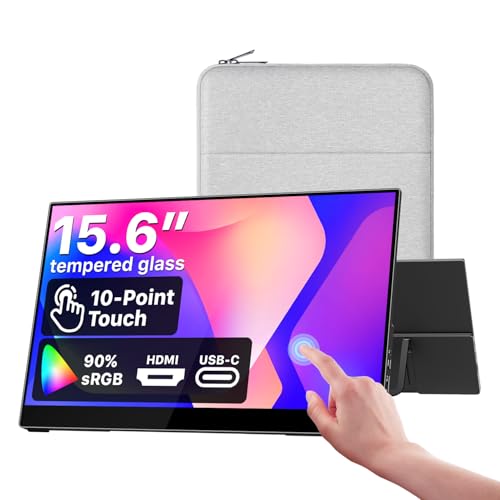 COCOPAR cocopar Portable Monitor Touchscreen 15.6 Inch 1080P FHD 90% sRGB…
View on Amazon ↗
 INNOVIEW InnoView 15.6" Portable Monitor 60Hz Touchscreen 1080P 10-Point Touch Screen…
View on Amazon ↗
 CAPERAVE CAPERAVE 15.6'' FHD Portable Monitor Touchscreen for Laptop Computer Mac…
View on Amazon ↗
Listing names and images come from Amazon and are rechecked against the live listings; last checked Nov 8, 2026. No prices shown; the current price is on the listing.
Scope and limits. This guide covers the portable touch monitor category as a whole and does not evaluate individual models. It explains which specifications matter and why, based on general product knowledge rather than any product documents, reviews, or in person testing. Always verify power draw, touch compatibility, and dimensions on the listing before you buy.