Two decisions shape the right backup software: how much of your system you want to protect and how hands off you want the process to be. Full image backups restore an entire computer after a crash, while file level backups are lighter and easier to browse. Pick a set and forget schedule if you will not open the app weekly. The main tradeoff is recovery speed against storage space.
Start With What You Are Willing to Lose
A backup plan works only if it matches what matters on the machine. A family computer with photos, school projects, and a few installed programs needs a different setup than a work laptop full of configured applications. Decide before comparing software whether you need to restore individual files, the whole system, or both.
File level backup copies documents, pictures, and folders you choose. It uses less storage and makes browsing old versions easy. Full image backup copies the entire drive, including the operating system, installed programs, and settings. After a hard drive failure, an image can put the computer back exactly as it was. Many home users get the most practical protection from a hybrid: frequent file backups plus a full image taken once a month or before major changes.
Students and home Windows users often do fine with file level backup of their user folders and a cloud sync for current work. Small businesses that cannot afford downtime lean toward full image backup with a test restore every few months.
The Real Difference Is Who Runs the Backup
Backup software tends to fall into two groups: tools you open and run by hand, and tools that run on their own schedule. A manual backup only protects you if you remember to start it. The software that quietly runs in the background, even when nobody is logged in, is the one that actually saves people.
Check the scheduling options in the listing. Look for daily or hourly automatic runs, the ability to wake the computer for a missed backup, and a clear log of what succeeded. Family computers benefit from a schedule that does not depend on one person remembering. A backup that nags with pop ups gets ignored; a backup that runs silently and reports success in a small notification is closer to invisible.
Versioning matters here too. Some tools keep every changed copy of a file, others keep only the latest. If a family member overwrites a school paper by accident, a backup that keeps several older versions gives you a way back.
Where the Backup Lives Changes Everything
A backup on the same physical drive as the original does not protect against drive failure, theft, or ransomware. A useful plan uses at least two locations. External drives are cheap and fast for large backups, but they fail too. Cloud storage survives a house fire or a stolen laptop, but restoring a full system from the internet can take days.
Most home users do best with a local copy on an external drive for everyday speed, plus a second copy of the most important files in a cloud service. Software that supports both destinations in one job saves setup time. Check whether the software can handle network attached storage if you have a home server or a family computer that stays on.
For small businesses, a common rule is three copies of important data: the working copy, a local backup, and an offsite backup. No software creates that by itself; the plan around the software does.
Restore Is the Part Nobody Practices
| Backup style | What you can restore | Storage needed | Recovery effort | Best fit |
|---|---|---|---|---|
| File and folder sync | Selected files only | Smallest | Low, but system rebuild needed | Students, light users |
| File level backup | Files and older versions | Moderate | Moderate, reinstall apps | Family computers, photos |
| Full image backup | Entire system and files | Largest | Low, if boot media works | Business PCs, complex setups |
| Hybrid image plus files | Files often, full system occasionally | Moderate to large | Low for files, moderate for system | Most home users |
A backup is only as good as its restore. Before buying, read how the software handles recovery. Full image tools need bootable media, often a USB drive you create ahead of time. File level tools usually restore through the app or by copying files back. Test the restore path on a small folder before you trust the whole plan.
Look for a restore option that lets you pick a single file from a point in time, not just roll back everything. That small feature saves hours when only one document went wrong.
Ongoing Costs Hide in Storage and Subscriptions
Backup software pricing splits between one time licenses and subscriptions. A one time purchase looks cheaper, but it often stops receiving updates and support after a few years. A subscription keeps the software current, which matters when a new Windows version or a security patch changes how backups work.
The bigger long term cost is storage. External drives wear out and need replacement every few years. Cloud storage bills grow as your data grows. A family photo collection can outgrow a starter cloud plan quickly. Before you buy, estimate how much data you create each year and whether the software compresses backups or deduplicates files to use less space.
Some software charges per computer, others per household or per business seat. Students with one laptop have different math than a small business with five workstations. Check whether the license covers reinstalling after a computer replacement.
Home Windows Users and Small Businesses Need Different Habits
A home Windows user usually wants one thing: photos, documents, and maybe a game save folder protected without thinking about it. The software should run quietly, use a connected external drive or a modest cloud plan, and show a clear green check when the backup is current. Extra features like database backup or server support add clutter, not value.
A small business adds pressure. Customer records, invoices, and employee files need regular backups with encryption and a tested restore. A business also needs to know who can restore what, and whether the software logs backup history for compliance. Some business oriented tools add central management, so one person can see the backup status of every work computer.
Family computers sit between those two. Multiple user accounts on one machine mean the backup needs to cover everyone's folders, not just the admin account. Check whether the software can include all user profiles by default.
Read the Listing for the Features That Actually Matter
Product listings for backup software mix useful facts with marketing phrases. Ignore claims like 'military grade encryption' unless you handle sensitive business data; standard AES encryption is enough for most people. Ignore 'unlimited storage' if it comes with a fair use clause buried in the terms. Focus on the mechanics: what gets backed up, when, and how you get it back.
Check the system requirements carefully. Some tools do not support the Home edition of Windows or need a specific file system. Check whether the software runs as a background service or only when a user is logged in. A backup that stops when the laptop lid closes is not a backup.
Ask the seller three questions if the listing is unclear: Does the software include bootable restore media? Does it keep multiple versions of files, and for how long? Does the license cover one computer or a household? A seller that cannot answer those quickly is selling a box, not a plan.
Mistakes That Turn a Backup Into a False Promise
The most common mistake is buying software and never checking that a backup actually completed. A scheduled job can fail silently for weeks: the external drive unplugged, the cloud token expired, the disk full. Set a recurring reminder to open the software and confirm the last successful run.
Another mistake is backing up to the same drive as the original files. It feels convenient, but a failing drive takes both copies at once. Keep the backup on a separate physical device or a cloud account.
People also forget to protect the backup itself. If ransomware encrypts the computer, it will encrypt a connected external drive too. A cloud backup with version history, or an external drive you disconnect after each backup, limits that damage.
Finally, do not buy software for a use case you do not have. A home user does not need server agent features. A business should not rely on a consumer tool that lacks central monitoring. Match the tool to the room it will live in.
Who Should Skip Backup Software Entirely
If you keep everything important in a cloud service like a document suite or a photo library, a separate backup program may be redundant for those files. Your provider already keeps versions and offsite copies. What you still need is a plan for files that live only on the computer: downloads, configuration files, local projects.
Someone with a single computer used only for web browsing and streaming might get by with a simple file sync tool and a manual copy to a USB drive once a month. Full backup software would be overkill. The money is better spent on a second external drive or a larger cloud plan.
Businesses with strict compliance rules may need more than consumer backup software. If you require immutable backups, legal hold, or granular audit logs, look at business continuity platforms instead. The guide here covers software for protecting files and systems, not regulatory archiving.
Backup Software Questions Worth Asking Before You Buy
What is the difference between file backup and image backup?
File backup copies individual files and folders you select, which keeps storage needs low and makes browsing old versions easy. Image backup copies the entire drive, including Windows, installed programs, and settings, so you can restore the whole computer after a failure. Many home users combine both: frequent file backups plus a monthly full image.
How often should backup software run?
For most home computers, a daily automatic backup is enough. If you work on important documents throughout the day, hourly file backups reduce what you can lose. Full image backups can run weekly or monthly. The key is automation: a schedule that runs without you is worth more than a powerful tool you forget to open.
Is cloud backup better than an external drive?
They solve different problems. An external drive is fast and cheap for large restores, but it fails and can be stolen or encrypted by ransomware. Cloud backup survives local disasters but restores slowly and costs a recurring fee. The safest practical setup uses both: a local drive for speed and a cloud copy of your most important files.
Can backup software restore my computer after a crash?
Only full image backup software can restore the entire system, and only if you created bootable recovery media ahead of time. File level backup restores your documents but not Windows or installed programs. Check the listing for bootable restore support and create the recovery USB drive before you need it.
Which backup software is best for a small business?
Look for tools with central management, encryption, scheduled full image backups, and a tested restore process. A business needs to see backup status across all work computers and keep customer records safe. Consumer tools without monitoring or multi computer licensing create gaps someone has to fill by hand.
A Backup Plan That Fits a Home Computer
A family computer full of photos, homework, and a few installed programs does best with a hybrid backup: automatic daily file backups to an external drive, plus a full image taken once a month and stored on a second drive or in the cloud. That setup balances storage cost against recovery speed. If the computer runs a home business or holds the only copy of client work, choose a full image backup with bootable restore media and test that restore twice a year.
Real backup software listings, so you can check the points in this guide against actual products. These are affiliate links: as an Amazon Associate we earn from qualifying purchases, at no extra cost to you.
 WD WD 2TB My Passport, Portable External Hard Drive, Black, backup…
View on Amazon ↗
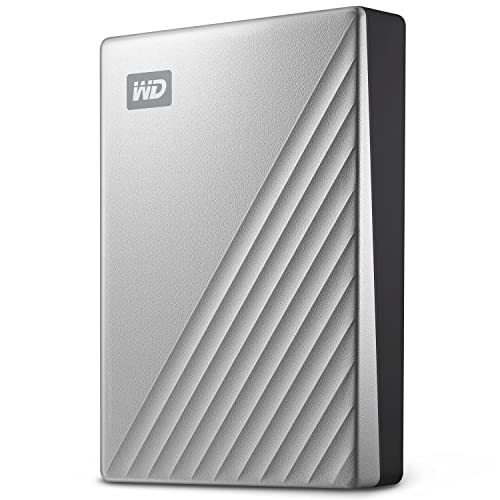 WESTERN DIGITAL WD 5TB My Passport Ultra for Mac Silver, Portable External…
View on Amazon ↗
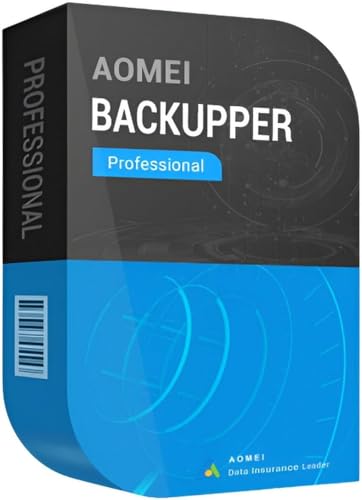 MARKT + TECHNIK AOMEI Backupper PRO - Backup software, recovery in case of…
View on Amazon ↗
Listing names and images come from Amazon and are rechecked against the live listings; last checked Nov 8, 2026. No prices shown; the current price is on the listing.
How to read this guide. Use this guide as a checklist to hold against any product listing, not as a verdict on a specific model. It covers the backup software category from general knowledge of how these tools work; check the listing for dimensions, supported Windows versions, and license terms before you buy.