The stick's Wi-Fi band and your router decide most buffering problems, so check 5 GHz support first. Then match the remote to how you search: voice for fast jumps, buttons for quiet nights. Renewed sticks save money but often arrive with older remotes or missing power adapters, so read the listing's included items line carefully.
The Wi-Fi Band Decides Your First Night
A streaming stick has no Ethernet port, so its only way to your router is wireless. If the stick supports 5 GHz, it can use a cleaner, faster channel that most modern routers broadcast. If it only supports 2.4 GHz, it competes with microwaves, baby monitors, and older phones in your home.
Compare this in the listing: look for 'dual band' or '5 GHz' in the connectivity section. A stick that only lists 2.4 GHz will still play HD video, but 4K streams may stutter when the network is busy.
Your router matters as much as the stick. If your router is several rooms away or older than a few years, even a dual band stick may buffer on 4K. In that case, a 2.4 GHz stick on a lower resolution will be more stable.
The Remote Is the Product You Touch
Every search, pause, and volume change happens on a small plastic wand. Voice remotes let you hold a button and say a show name, which is faster than typing with an on screen keyboard. Button only remotes are quieter and simpler, but you will spend more time scrolling.
Check the listing for the remote type and whether it controls your TV's power and volume. Some renewed sticks ship with a generic remote that cannot adjust your TV, forcing you to keep two remotes on the couch.
If you watch in a dark room, look for backlit buttons or a remote with a headphone jack for private listening. These are small features that change night sessions more than any processor speed.
HDMI Version and the 4K Question
A 4K stick plugged into an HDMI 1.4 port will downscale to 1080p, wasting the upgrade. Check your TV's manual or the port label for 'HDMI 2.0' or 'HDMI 2.1'. If your TV is older than that, a basic HD stick is the honest choice.
For TVs that do support HDMI 2.0 or newer, a 4K stick adds HDR and Dolby Vision on some models. These formats make bright scenes punchier, but only if the app and the TV both support them. A premium 4K stick on a 1080p TV is wasted money.
Renewed listings sometimes bundle an older HDMI cable or omit one entirely. A streaming stick plugs directly into the TV, so you usually do not need a cable, but check that the stick's HDMI connector is not bent or damaged in the photos.
What a Renewed Listing Should Tell You
A renewed streaming stick is a returned or refurbished unit. The listing must state what is included: the stick, the remote, the power adapter, and any HDMI extender. If the remote is missing, the stick is nearly useless unless you buy a replacement separately.
Ask the seller two questions before buying: whether the stick has been factory reset, and whether the remote is the original model or a compatible substitute. A factory reset stick will ask you to sign in fresh, which is what you want.
Check the power adapter's connector type. Some sticks use a USB cable and require a power brick that can deliver enough current. A weak adapter from a phone will cause random reboots during 4K playback.
| Stick type | Wi-Fi band | Best for | Remote style |
|---|---|---|---|
| Basic HD stick | 2.4 GHz only | Older TVs, travel, small screens | Button only |
| 4K HDR stick | Dual band | Modern 4K TVs, busy homes | Voice often included |
| Premium 4K stick | Dual band, faster | Large 4K TVs, Dolby Vision setups | Voice with TV controls |
The table shows the main split: basic sticks trade away 5 GHz and voice for a lower price and simpler setup. Premium sticks add speed and picture formats, but only your TV and router can use them.
Apps and Accounts Are the Real Cost
A streaming stick is a door, not a library. Every app on it needs its own subscription or login. Before buying, list the three services you actually watch and confirm the stick's app store carries them. Some niche or regional apps are missing on certain platforms.
Storage space for apps is small on most sticks, usually a few gigabytes. If you install many games or large apps, the stick will ask you to delete something before adding another. For streaming video only, this rarely matters.
Long term, the stick's software updates matter more than its hardware. A stick that still receives updates will keep working with new app versions. A renewed stick that is several generations old may stop supporting a major streaming app.
Where the Stick Goes Wrong in Your Room
The stick hides behind the TV, which is often the worst place for Wi-Fi. A large TV acts as a metal shield, and a wall mounted TV pushes the stick even closer to the wall. If your router is on the other side of the TV, the signal may drop.
An HDMI extender, a short flexible cable, lets you pull the stick out from behind the TV and away from interference. Some renewed listings include this extender, others do not. If you have a wall mounted TV, an extender is almost essential.
Heat is a second hidden problem. A stick that runs 4K for hours gets warm, and behind a TV the heat has nowhere to go. A stick that overheats will throttle its video quality or reboot. If you plan long movie nights, look for a stick with a slightly larger body or vents.
Who Should Skip a Streaming Stick
If you already have a smart TV with all your apps and no buffering problems, a stick adds nothing but another remote. The same goes for anyone who watches only antenna TV or a single cable box.
Gamers who want cloud gaming or local game streaming should look at a set top box instead. Sticks lack the processing power and cooling for sustained game sessions, and their app stores often omit game streaming services.
Homes with no Wi-Fi or a very weak signal should instead use a box with an Ethernet port. A stick cannot be wired directly to the router, so it will always depend on wireless quality.
Streaming Stick Questions Before You Buy
Can a streaming stick work on any TV?
It needs an HDMI port and a nearby power outlet or USB port that can supply enough current. Very old TVs without HDMI will not work. The stick also needs a Wi-Fi network with internet access. If your TV is 4K but the HDMI port is version 1.4, a 4K stick will downscale to 1080p.
How do I know if a renewed streaming stick has been reset?
A factory reset stick will show a setup screen when first plugged in, asking for language and Wi-Fi. If it boots straight to someone else's home screen, it has not been reset. Always ask the seller to confirm a factory reset before shipping, and be ready to reset it yourself through the settings menu.
Does a streaming stick need a subscription?
The stick itself is a one time purchase, but almost all content on it requires separate subscriptions or rental fees. Free apps exist, but the main streaming services charge monthly. Check the app store on the stick's platform before buying to confirm your services are available.
What is the difference between a streaming stick and a set top box?
A stick plugs directly into the HDMI port and is powered by USB or a small adapter. A set top box is larger, often has an Ethernet port, more storage, and better cooling. Boxes handle gaming and weak Wi-Fi homes better, while sticks are smaller and easier to move between rooms.
Which streaming stick is best for an older TV?
For a 1080p or 720p TV, a basic HD stick is enough. A 4K stick will work but will downscale the picture, so you pay for features you cannot see. Focus on the remote style and app support instead of resolution. A basic stick with a voice remote is often the better buy for an older TV.
Which Streaming Stick Fits Your Couch
A viewer who watches Netflix and YouTube on a 4K TV in a normal apartment should get a 4K HDR stick with a voice remote and dual band Wi-Fi. It balances price and performance for the most common setup. If your TV is 1080p or your router is weak and far away, a basic HD stick will actually be more stable, and you save money for a subscription instead.
Real streaming stick listings, so you can check the points in this guide against actual products. These are affiliate links: as an Amazon Associate we earn from qualifying purchases, at no extra cost to you.
 ROKU Roku Streaming Stick Plus with Voice Remote - 4K &…
View on Amazon ↗
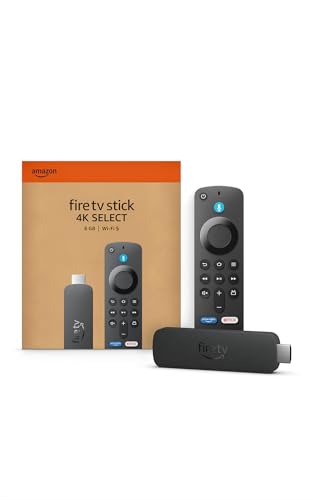 AMAZON Amazon Fire TV Stick 4K Select, start streaming in 4K,…
View on Amazon ↗
 ONN ONN Android TV 2K FHD Streaming Stick with Remote Control…
View on Amazon ↗
Listing names and images come from Amazon and are rechecked against the live listings; last checked Nov 8, 2026. No prices shown; the current price is on the listing.
How to read this guide. This guide covers the streaming stick category in general, not individual models. It is written from category knowledge, without reading product reviews or handling specific units, so verify dimensions like the stick's length and the included cable on the listing before buying.