The room shape and distance decide most of it. In a big hall or classroom you need long radio range and a receiver that stays in your laptop's USB A port. At a cramped desk or for online teaching, a compact USB-C clicker with a bright laser and simple buttons matters more. The main tradeoff is reach against pocket size and button clutter.
Match Range to the Room Before Anything Else
Radio range is the first thing to check because it is the hardest to fix after buying. A clicker rated for 30 feet works fine in a home office or small meeting room, but a lecture hall or training floor can put you 50 to 100 feet from the laptop. Compare the listed range, then cut it in half for walls, people, and other wireless gear.
Distance is not only about advancing slides. If you pace across a stage, the signal needs a clear path to the receiver, not through your body. Look for a clicker whose receiver uses a strong 2.4 GHz radio rather than older infrared, which needs line of sight and fails when someone walks between you and the laptop.
For online teaching from a desk, range hardly matters. A clicker that works reliably at 10 to 15 feet is enough, and you can prioritize size and button feel instead.
The Receiver Is the Part That Breaks the Deal
Most presentation clickers use a small USB receiver that stores inside the battery compartment or clips to the body. Check which USB shape it uses. Many laptops now have only USB-C ports, while older classroom computers and projectors often have USB A. A clicker with a USB A receiver may need an adapter, which is an extra thing to lose.
Some clickers skip the receiver and connect over Bluetooth. That removes the dongle problem, but pairing can be slower and the connection can drop when the laptop sleeps. If you present on shared or locked down computers, a USB receiver is usually more predictable because it acts as a simple keyboard device and needs no software.
Before buying, ask the seller whether the receiver works without installing drivers. Most do, but a few need an app for extra features like screen blackout or volume control. Check the listing for the words plug and play or driver free.
Buttons You Can Find Without Looking
A presentation clicker lives in your hand while you talk, so button shape and spacing matter more than button count. The two you need are forward and back. Anything beyond that is useful only if you practice with it.
Small, flat buttons that sit close together invite fumbles. You press the wrong arrow or trigger the laser by accident. Look for a raised forward button, a recessed back button, and a separate laser button placed away from your thumb's resting spot.
Extra buttons for screen blackout, volume, or switching windows sound helpful but add confusion. For a classroom or small meeting, forward, back, and laser cover nearly every situation. For online teaching, you may only ever use forward.
- Forward button should be the largest and easiest to press
- Back button should be smaller or recessed to avoid mistakes
- Laser button should sit away from the slide controls
Laser Color and Brightness Change With the Screen
A red laser is the standard, but it washes out on bright LED screens and projectors in daylight. A green laser is easier to see because the human eye picks up green light more strongly, though it costs more and drains the battery faster.
If you present in dim rooms, red is fine. If you teach in a bright classroom or point at large projected images, compare green laser clickers. Check the listing for the laser class, usually Class 2 or Class 3R, and remember that even a Class 2 laser should never be pointed at eyes.
Some clickers replace the laser with a digital spotlight or cursor on the screen. That works only if the software is running on the presenting computer, which is not always allowed on a shared machine.
Battery Type Shapes the Long Term Cost
Clickers run on either AAA or AA batteries, or a built in rechargeable battery. Disposable batteries are easy to replace in a hallway before a talk, but you carry spares and the cost repeats. A built in battery charges over USB and costs nothing extra, but if it dies mid presentation you are stuck unless you brought a cable and a power source.
Look for a clicker with a low battery indicator, either a small light or an on screen alert. Without one, the first sign of a dying battery is a slide that will not advance. Also check whether the clicker has an automatic sleep mode, which saves battery between talks but can cause a short delay when you first press a button after a break.
- AAA or AA: quick swap, but carry spares
- Built in rechargeable: no spares, but needs a charge cable
- Auto sleep: saves power, may pause on first press
How the Clicker Feels in a Pocket or Bag
Size and shape decide whether you actually bring the clicker to every talk. A long range presenter with a big antenna and heavy body is great on a podium but annoying in a blazer pocket. A compact clicker that disappears in a laptop bag is easier to carry but may feel too small for large hands.
Check the listed dimensions and weight, then compare them to something you already carry, like a pen or a small power bank. A clicker that is 4 to 5 inches long and under 2 ounces is easy to pocket. Anything larger belongs in a bag, not a pocket.
Also look at the clip or storage slot for the USB receiver. If it does not stay firmly inside the body, the receiver will fall out and the clicker becomes useless. A magnetic or snap in slot is more secure than a simple friction fit.
Which Use Cases Point to Different Clickers
Online teaching and home tutoring rarely need range or a laser. A small Bluetooth or USB-C clicker with forward and back buttons is enough, and it keeps your desk uncluttered. For these uses, a presentation tool for remote work should prioritize reliable pairing over long range.
Small meetings in a conference room call for a standard radio clicker with a USB A receiver, since shared laptops and projectors often have older ports. Range of 30 to 50 feet is plenty, and a red laser helps point at printed handouts or a whiteboard.
Classroom use and large training rooms demand the longest range and a bright laser. A green laser helps against bright projector screens, and a sturdy body survives being dropped or passed between teachers. Consider a clicker with a storage slot that protects the receiver.
| Use case | Best range | Receiver type | Laser | Size priority |
|---|---|---|---|---|
| Online teaching | 10 to 15 ft | Bluetooth or USB-C | None needed | Compact |
| Small meeting room | 30 to 50 ft | USB A receiver | Red | Pocketable |
| Classroom or hall | 50 to 100 ft | USB A receiver | Green | Sturdy |
Remote teams presenting from home can use the same clicker as an online teacher, since the laptop is always nearby. The only difference is that remote team calls often involve screen sharing, so a button that accidentally triggers the laser is more annoying than helpful.
Mistakes That Leave You Clicking at Nothing
The most common mistake is buying for the biggest room you might ever use. A long range clicker with a big receiver and green laser is overkill for a home office and wastes battery and pocket space. Buy for the room you present in most often, not the one you visit once a year.
Another mistake is ignoring the USB port on the computer you actually use. A USB A receiver in a USB-C only laptop means an adapter, and adapters get left behind. If you switch between a desktop and a laptop, a clicker with both a USB A receiver and a USB-C connection or a Bluetooth backup solves the problem.
Finally, avoid clickers with touch sensitive buttons or scroll wheels that look sleek but are hard to use without looking down. Physical buttons with clear travel are more reliable when your eyes are on the audience, not your hand.
Questions About Presentation Clickers
Is a presentation clicker worth it for online teaching?
Yes, if you move around or stand while teaching. A clicker lets you advance slides from a whiteboard or a standing desk without reaching for the laptop. For a seated setup where the laptop is within arm's reach, the keyboard arrow keys work fine and a clicker adds little.
Which presentation clicker works with a USB-C only laptop?
Look for a clicker with either a USB-C receiver, a Bluetooth connection, or a receiver that stores a USB-C adapter. Avoid a clicker with only a USB A receiver unless you are willing to carry a separate adapter. Check the listing for the exact receiver connector before buying.
How far does a presentation clicker work through walls?
Range drops sharply through walls, floors, and even a crowd of people. A clicker rated for 100 feet in open air may only manage 30 to 40 feet through a thin wall. For any room with obstructions, choose a clicker with at least double the range you think you need.
Can I use a presentation clicker with a smart TV or tablet?
Some clickers work with smart TVs and tablets if the device accepts a USB receiver or Bluetooth keyboard input. Check the device's settings for external keyboard support. Not all TVs or tablets recognize a clicker, so verify compatibility before relying on it for a presentation.
What makes a presentation clicker's buttons feel reliable?
Reliable buttons have a distinct click, enough travel to feel the press, and enough spacing that your thumb does not hit two at once. A raised forward button with a recessed back button helps. Avoid flat membrane buttons that give no tactile feedback, especially if you present with sweaty or nervous hands.
The Clicker That Fits the Room You Actually Use
A teacher who presents in the same classroom most days should buy a long range radio clicker with a USB A receiver, a green laser, and large physical buttons. That setup survives a bright projector and a crowded room. For an online tutor or remote worker at a desk, a compact Bluetooth or USB-C clicker with forward and back buttons is the better pick, since range and laser brightness are wasted at arm's length.
Real presentation clicker listings, so you can check the points in this guide against actual products. These are affiliate links: as an Amazon Associate we earn from qualifying purchases, at no extra cost to you.
 ELISWEEN Presentation Clicker with USB-A & USB-C Receiver, 2.4GHz Wireless Presenter…
View on Amazon ↗
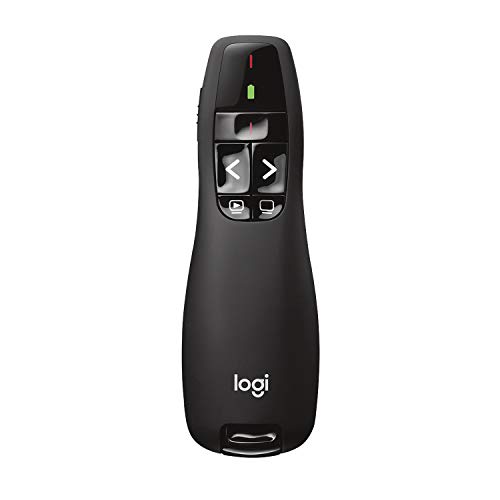 LOGITECH Logitech Wireless Presenter R400 USB A PowerPoint Clicker with Laser…
View on Amazon ↗
 DINOFIRE Wireless Presenter, Hyperlink Volume Control Presentation Clicker RF 2.4GHz USB…
View on Amazon ↗
Listing names and images come from Amazon and are rechecked against the live listings; last checked Nov 8, 2026. No prices shown; the current price is on the listing.
What this guide is. This guide draws on general knowledge of how presentation clickers work, their common receiver and battery designs, and the practical differences between room types. It does not evaluate any specific model or read individual product listings, so always check the listed range, receiver connector, and battery type for the exact clicker you are considering.