Pick a lightweight Chromebook by three things: hinge strength for bag life, battery size for all day use, and screen brightness for rooms you cannot control. College students and home users can accept a dimmer screen and slower charger. Travelers and outdoor workers need a brighter panel and a stiffer hinge, and that costs more or adds weight.
Start With the Hinge, Not the Spec Sheet
A Chromebook that flexes at the hinge feels unstable on a lap desk or a train tray. Check the listing for hinge type, but describe how you will use it: on a desk, in bed, on a knee.
Two in one designs that fold flat put more stress on the hinge than standard clamshells. Look for a hinge described as stiff or reinforced if you plan to use touchscreen mode often.
Pick up the floor model if you can. Open it halfway and press lightly on the screen corner. A screen that bounces for more than a second will annoy you on a moving bus.
Battery Size Is the Real Weight Tradeoff
Manufacturers list battery capacity in watt hours, but many listings hide it. A smaller battery keeps the weight down and forces you to carry a charger.
For a full day of classes or a long flight, look for a battery described as all day or 10 hours or more. Check the fine print: that estimate often assumes low brightness and light browsing.
If you work near outlets all day, a smaller battery is fine and saves weight. The tradeoff is simple: every extra hour of battery adds grams you carry.
- Check watt hours, not just hours of use.
- Look for USB-C charging that matches your phone charger.
- Ask whether the charger is included and how heavy it is.
Screen Brightness Decides Where You Can Work
Most budget Chromebooks use a 250 nit panel. That is fine in a dim living room or a classroom with curtains. Near a window or outside, it washes out.
For bright rooms or outdoor use, look for 300 nits or more. Listings often omit this number, so check the manufacturer page or ask the seller.
A matte finish reduces glare more than a glossy one. If the listing says anti glare, that is a real feature, not marketing.
How to Read a Listing Before You Pay
Listings emphasize processor, RAM, and storage. For a lightweight Chromebook, those matter less than hinge, battery, and screen. Check the weight in grams or pounds first.
Look for the phrase 'military grade' or 'MIL STD' if you travel. It means the chassis passed drop tests, though the specific test varies.
Ask the seller two questions: the exact battery watt hours and the screen brightness in nits. If they cannot answer, the listing is hiding the two specs that matter most.
Compare the keyboard layout. Some lightweight models shrink the Enter key or delete key. Check the product photos for a full size keyboard if you type all day.
Storage and Ports: Enough, Not Maximum
Chromebooks rely on cloud storage, so 64 GB of local storage is enough for most people. If you download movies or work offline, look for 128 GB.
Check the ports before you buy. One USB-C port is limiting if you charge and use a mouse at the same time. Look for at least two USB-C or one USB-C plus one USB A.
A microSD slot adds cheap storage for offline files, but not all lightweight models have one. If you travel without reliable WiFi, this matters.
| Design | Weight feel | Battery stamina | Bright room use | Best for |
|---|---|---|---|---|
| 11 inch clamshell | Featherweight | Short, 6 to 8 hours | Weak, often 250 nits | Backpack carry, short classes |
| 13 inch clamshell | Light, balanced | Moderate, 8 to 10 hours | Average, 250 to 300 nits | Daily commute, home office |
| 14 inch clamshell | Noticeably heavier | Long, 10 to 12 hours | Good, often 300 nits | All day desk work, travel |
| 2 in 1 convertible | Heavy for its size | Long, 10 to 12 hours | Varies, check listing | Tablet mode, presentations |
The table shows the tradeoff: the lightest designs sacrifice stamina and brightness. A 14 inch clamshell is often the sweet spot for all day use without a sore shoulder.
Who Should Skip a Lightweight Chromebook
Skip this type if you need Windows or Mac software. A Chromebook runs web apps and Android apps, but not full desktop programs like Photoshop or AutoCAD.
Skip it if you edit video locally or run virtual machines. The processors in lightweight models are efficient, not powerful, and storage is small.
Skip it if you need a bright outdoor screen and refuse to pay a premium. A cheap tablet with a keyboard case might serve better for sunlight, though the typing feel differs.
Remote workers who rely on specific VPN software should check compatibility first. Some VPNs require a Windows or Mac client that Chrome OS cannot run.
- Need desktop software? Look at a Windows ultrabook instead.
- Need a huge screen? A lightweight Chromebook tops out around 14 inches.
- Need offline video editing? Storage and processor will struggle.
College, Remote Work, and Home Office Fit
For college students, a lightweight Chromebook fits a backpack and lasts through lectures if you pick the right battery. The main risk is a dim screen in a bright lecture hall.
For remote work, the browser based workflow is fine for email, documents, and video calls. Check that your company's remote desktop or VPN works on Chrome OS before you commit.
For a home office, a lightweight Chromebook pairs well with an external monitor. You get a small footprint on the desk and a big screen when you dock it.
Home servers are not a use case for this product. A Chromebook is a client device, not a server. If you want a quiet always on machine for home services, see fanless mini PCs for quiet home offices.
Mistakes That Come Back in a Bag
The biggest mistake is buying by processor name. A faster chip does not fix a dim screen or a loose hinge, and it adds cost you do not feel in web apps.
Another mistake is assuming all lightweight Chromebooks charge the same. Some use a barrel charger, not USB-C. That means one more cable to pack.
Buying a 2 in 1 for the tablet mode and then never using it adds weight and hinge wear. If you do not draw or present, a clamshell is lighter and sturdier.
Ignoring the keyboard layout leads to frustration. Check the photos for the position of the backslash, delete, and power keys, especially on compact models.
Long Term Costs Are Mostly the Charger
Chromebooks have no expensive consumables. The main long term cost is a replacement charger, especially if the model uses a proprietary barrel plug.
Battery health degrades over time, but you cannot easily replace the battery in most lightweight models. Treat the battery as a fixed lifespan, not a serviceable part.
Software updates are automatic and free. Chrome OS devices receive updates for a set period from the model's release, not from your purchase date. Check that window if you buy an older model.
Lightweight Chromebook Questions, Answered Before the Cart
What makes a Chromebook lightweight?
A Chromebook under about 3 pounds is considered lightweight. The lightest 11 inch models dip below 2.5 pounds, while 14 inch models sit closer to 3.5 pounds. Weight comes mostly from the battery and chassis material. Magnesium or plastic shells weigh less than aluminum, but they can flex more.
Should I buy a 2 in 1 or a regular clamshell Chromebook?
Buy a 2 in 1 only if you will use tablet mode or a stylus regularly. The hinge is more complex and the battery is often larger to power the touchscreen, which adds weight. If you mostly type and browse, a clamshell is lighter, stiffer, and usually cheaper for the same screen size.
Is 4 GB of RAM enough for a Chromebook?
For light browsing, email, and documents, 4 GB works but stutters with many open tabs. If you keep more than ten tabs open or run Android apps, look for 8 GB. RAM cannot be upgraded later in most lightweight Chromebooks, so choose at purchase.
How do I compare two lightweight Chromebooks?
Compare the three deciding specs: hinge stiffness, battery watt hours, and screen brightness in nits. Then check weight, keyboard layout, and ports. Processor speed matters less on Chrome OS than on Windows. If a listing hides any of those specs, treat it as a warning.
Can I use a lightweight Chromebook for work?
Yes, if your work happens in a browser: email, documents, spreadsheets, video calls, and web apps. Check that your company's VPN, remote desktop, and any required software have Chrome OS versions. Some enterprise tools only run on Windows or Mac.
Which Lightweight Chromebook Fits Your Day
A student or home user who works indoors near outlets should pick a 13 inch clamshell with at least 8 GB of RAM, a 1080p screen, and a battery rated for 10 hours. It balances weight and stamina without paying for a touchscreen. A traveler who works in bright lobbies or on trains should instead choose a 14 inch model with a 300 nit screen and a reinforced hinge, even though it weighs more.
Real lightweight chromebook listings, so you can check the points in this guide against actual products. These are affiliate links: as an Amazon Associate we earn from qualifying purchases, at no extra cost to you.
 ASUS ASUS CM30 2-in-1 Chromebook 10.5" WUXGA, MediaTek Kompanio 520, 8GB/128GB…
View on Amazon ↗
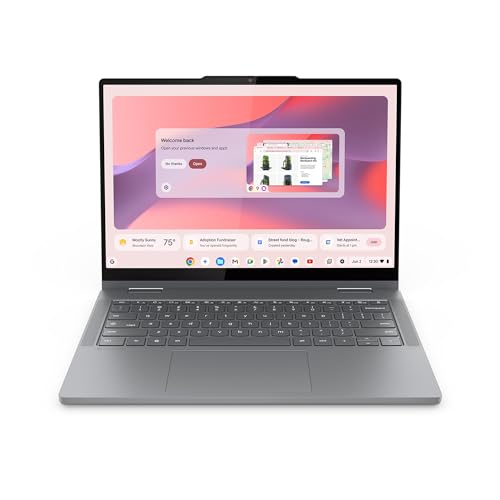 LENOVO Lenovo Chromebook 2-in-1 - Lightweight Laptop - Google Gemini -…
View on Amazon ↗
Listing names and images come from Amazon and are rechecked against the live listings; last checked Nov 8, 2026. No prices shown; the current price is on the listing.
About this guide. Use this guide as a checklist to hold against any listing: hinge, battery, screen, ports, and keyboard. It covers the product type in general and does not judge individual models. Verify dimensions and specs on the seller's page before you buy.