Focus on two decisions: what you plug into the card and what you want the signal to become. A card with HDMI passthrough and low latency suits live work, while a simple USB dongle handles record only sessions. The main tradeoff is between clean setup and flexibility across cameras, consoles, and computers.
Know Which Source Is Driving the Card
A capture card only records what arrives at its input. If you stream a mirrorless camera, you need a card that accepts a clean HDMI signal from that body. If you capture a game console, the card must handle that console's output format and refresh behavior.
Check the card's input list before anything else. Some cards take only HDMI, others add component or composite for older gear. A card with a single input forces you to swap cables when you change sources, which becomes a problem during a live show.
For a two camera setup, like an online class with one wide shot and one close shot, you need either two cards or a card with multiple inputs. A single input card can still work if you switch cameras through an external switcher, but that adds cost and another box.
- HDMI input is the default for modern cameras and consoles
- Component or composite inputs matter only for legacy equipment
- Multiple inputs help when you run two sources at once
- A clean HDMI output from your camera avoids on screen menus
Passthrough Keeps Your Monitor in the Loop
Passthrough sends the incoming signal out to a TV or monitor while the card also records it. This matters when you play a game and need zero delay on your display. Without passthrough, you would play from the preview window, which adds enough lag to ruin timing.
Compare the passthrough specification on the listing. A card that passes through 4K at 60 frames per second behaves differently from one that downscales to 1080p. If your monitor runs at 4K, a 1080p passthrough forces you to lower your display resolution.
For a camera feed in an online class or a YouTube talking head video, passthrough matters less. You can monitor from the software preview because a half second of delay does not change what you say or do. Latency becomes critical only for interactive content.
| Card shape | Passthrough | Latency feel | Suits |
|---|---|---|---|
| USB dongle | Often absent | Noticeable in preview | Record only sessions |
| External box | Usually HDMI out | Low enough for most work | Streaming and teaching |
| Internal PCIe card | Often multiple outs | Near real time | Live gaming and switching |
A card that lacks passthrough can still serve a podcast or a screen recording setup, where the operator watches the computer, not the captured source.
When you compare listings, treat passthrough as a yes or no question for your use case. If you need it, any card without it is off the list.
Resolution Is a Ceiling, Not a Promise
A capture card lists a maximum resolution and frame rate, such as 1080p at 60 or 4K at 30. That number tells you the ceiling, not what every source will produce. A 4K card can record a 1080p camera, but a 1080p card cannot cleanly capture a 4K source.
Frame rate matters more than resolution for motion. A 60 frames per second signal keeps panning and hand gestures smooth, which helps in short form video with quick cuts. A 30 frames per second signal looks fine for a seated talking head.
Check the recording format too. Some cards capture uncompressed video, which creates large files, while others compress on the card to save space. The listing should state whether the card outputs MJPEG, H.264, or another format, and that format must match your editing software.
- Resolution is the maximum, not the default
- Frame rate controls motion smoothness
- Compression format changes file size and editing load
- 4K capture only helps if your source and workflow support 4K
Software Compatibility Decides the Daily Workflow
A capture card appears to your computer as a video device. The software you already use, such as OBS, Streamlabs, Zoom, or a video editor, must recognize that device. Most cards work with standard UVC drivers, which means no extra driver install on Windows or macOS.
Read the listing for the operating system list. Some cards support Windows but skip macOS or Linux. A card that works only with proprietary software limits you to that app, which becomes a problem if your school or employer requires a specific platform.
The card's own software can matter too. Some cards include a utility for adjusting brightness, contrast, or scaling. If you plan to use the card with a phone or tablet, check whether it supports USB-C video input and a mobile app.
The Dongle, the Box, and the Slot
Capture cards come in three main shapes, and each one changes how you work. A USB dongle hangs off a cable and is easy to pack, but it often has one input and no passthrough. An external box sits on a desk with more ports and sometimes a headphone jack for monitoring.
An internal PCIe card installs inside a desktop computer. It offers the lowest latency and often multiple inputs, but it cannot travel and requires a free slot and a power supply. If you capture in a fixed studio, an internal card makes sense.
A dongle suits a creator who records a single camera into a laptop. A box fits someone who streams from a console and wants passthrough to a TV. A PCIe card belongs in a dedicated streaming PC with multiple sources.
- Dongle: portable, single input, no cooling
- Box: more ports, passthrough, sits on a desk
- PCIe card: lowest latency, multiple inputs, desktop only
- Match the shape to where and how often you capture
What the Listing Leaves Out
Listings emphasize resolution and frame rate, but several practical details change the experience. The cable length between the card and the source affects signal stability, especially at 4K. A card with a short, built in USB cable limits where you can place it.
Check the power draw. A bus powered card runs off the USB port, while some boxes need a separate power adapter. If your laptop has limited USB power, a bus powered dongle may drop frames when the battery runs low.
Ask the seller about HDCP. Most capture cards cannot record copy protected content, which means a Blu-ray player or some streaming boxes will show a black screen. For cameras and game consoles this is rarely an issue, but for screen capture of protected apps it matters.
The listing may not state the chipset inside the card. A card with a widely used chipset tends to have better driver support across operating systems. If the page does not name the chipset, search for the model number and the word chipset.
Mistakes That Show Up After the Return Window
A common mistake is buying a card for a resolution your source cannot output. A 1080p webcam plugged into a 4K capture card still records 1080p. The card does not upscale the source, so you pay for headroom you never use.
Another mistake is ignoring the audio path. Some cards capture HDMI audio, while others require a separate analog audio input. If your camera sends audio over HDMI and the card does not extract it, you get silent footage.
Creators sometimes buy a card with passthrough but then connect the passthrough to a monitor with a different refresh rate. The card may convert the signal, which introduces judder. Match the passthrough output to the monitor's native resolution and refresh rate.
For online teaching, a mistake is choosing a card that adds noticeable delay to the preview. When you write on a whiteboard or demonstrate a physical object, a laggy preview makes you pause awkwardly. Check the latency specification or look for a card described as low latency.
Long Term Costs Hide in Cables and Cooling
A capture card rarely needs consumables, but the cables around it wear out. A card that requires a specific USB-C cable with high bandwidth may fail when you substitute a longer, thinner cable. Budget for a high quality cable if the card sits far from the computer.
External boxes generate heat during long streams. A unit with passive cooling may throttle and drop frames after two hours in a warm room. Look for a metal housing or ventilation if you run multi hour sessions.
Software updates matter less for capture cards than for cameras, but the driver can affect stability. A card from a company that regularly updates its firmware is safer for a long term setup. Check the support page for the latest firmware date before you buy.
Alternatives Worth a Second Thought
If you only record a screen, a screen recording app may replace a capture card entirely. For a PowerPoint lecture or a software demo, the computer can capture its own screen without any external device. A capture card becomes necessary only when the source is a separate camera or console.
Some cameras can connect to a computer over USB and appear as a webcam without a capture card. This works for many mirrorless and point and shoot models, but the video is often limited to 720p or 1080p and the camera may overheat.
A video switcher with a built in USB output can replace both a capture card and a separate switcher for a two camera setup. This costs more upfront but simplifies the wiring and reduces the number of boxes on the desk.
For a podcast or an audio only stream, a capture card is the wrong tool. A dedicated audio interface handles microphones and headphones better, and it costs less than a video capture card.
- Screen recording app for software only demos
- USB webcam mode on a camera for simple video calls
- Video switcher with USB out for multi camera setups
- Audio interface for podcast or voice only work
Capture Card Questions Buyers Ask Before Adding to Cart
What is a capture card?
A capture card takes a video signal from a camera, console, or another computer and sends it to your computer as a video source. It lets recording or streaming software see that external device as if it were a webcam. The card handles the conversion from HDMI or another input to a USB or PCIe signal your computer can process.
Should I buy a capture card or use a software recorder?
Use a software recorder when the content is already on the computer, like a slide deck or an app demo. Buy a capture card when the source is a separate camera, a game console, or a second computer. A capture card also helps when you need clean HDMI from a camera that lacks a USB webcam mode.
Is a capture card worth it for online teaching?
It is worth it if you teach with a document camera, a second camera angle, or a physical whiteboard. A capture card lets you bring those sources into Zoom or Teams as clean video. If you only use a built in webcam and screen share, a capture card adds no benefit.
Which capture card works with OBS?
Most cards that follow the UVC standard work with OBS without extra drivers. Check the listing for UVC or driver free operation. OBS also needs the card's resolution and frame rate to match your scene settings, so confirm the card's maximum and the format it outputs.
How do I compare two capture cards?
Compare five things in this order: input type and number, passthrough support, maximum resolution and frame rate, operating system support, and physical form. Latency and power draw come next. A card that fails any of the first five checks is not a match, regardless of price.
Which Capture Card Fits Your Recording Setup
A creator who streams one camera into a laptop and wants a simple setup should get a USB dongle with HDMI input and 1080p at 60 frames per second. That covers most YouTube videos, online classes, and short form clips without passthrough or extra power. A live gamer who plays on a console and needs zero lag on a TV should instead pick an external box with HDMI passthrough and 4K support.
Real capture card listings, so you can check the points in this guide against actual products. These are affiliate links: as an Amazon Associate we earn from qualifying purchases, at no extra cost to you.
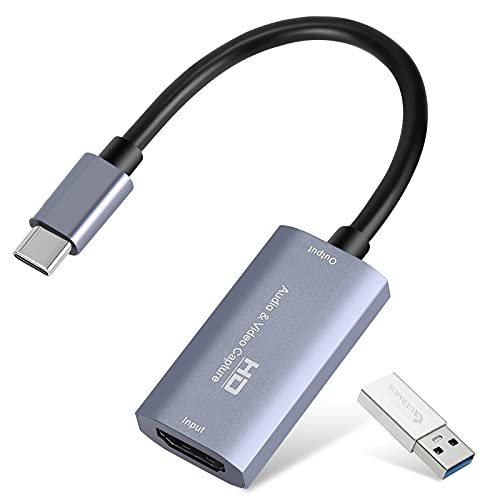 GUERMOK Guermok Video Capture Card, 4K USB3.0 HDMI to USB C,…
View on Amazon ↗
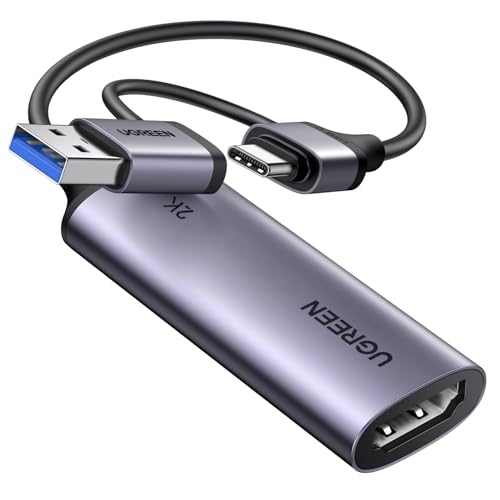 UGREEN UGREEN 2K@30Hz 1080P 60FPS Video Capture Card 4K Input HDMI…
View on Amazon ↗
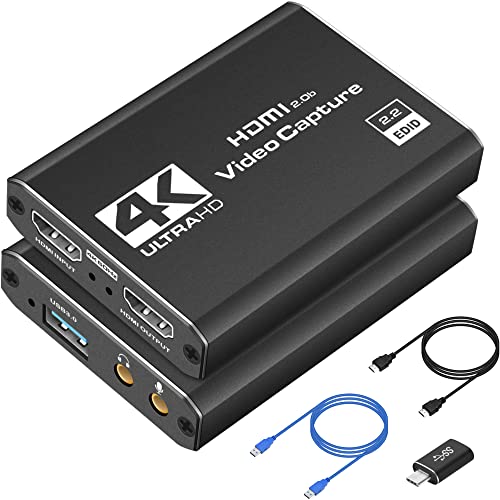 DCYFOL Capture Card 4K HDMI Video Streaming to USB 3.0 1080P…
View on Amazon ↗
Listing names and images come from Amazon and are rechecked against the live listings; last checked Nov 8, 2026. No prices shown; the current price is on the listing.
About this guide. Use this guide as a checklist to hold against any listing you open. It describes the capture card category in general, not specific models, so confirm the input, passthrough, and format details on the product page before you buy.