Start with the canvas and brushes you can actually control, then check how the app handles layers and exporting. A beginner sketching for fun can thrive in a free or budget app, while a professional creating client work needs precise pressure response, big canvases, and file formats that survive a print shop. The main tradeoff is simplicity versus control: fewer features feel cleaner, but they cap what you can make.
The canvas size and layer count set your ceiling
Check the maximum canvas dimensions before anything else. A phone sketch can live on a 2048 by 2048 canvas, but a piece meant for a poster or a large print needs 4000 pixels or more on the long side. If the app caps canvas size low, you will hit that wall long before your skill does.
Layer limits work the same way. Some apps allow only three or five layers, which forces you to flatten work early and lose the ability to adjust line art, color, or shading separately. Others offer dozens or effectively unlimited layers. Count how many layers you actually use in a typical piece, then double that number as a safety margin.
Resolution and color depth matter for final output. Look for support for at least 8 bit color, and check whether the app stores your work in a lossless format internally. If an app compresses everything into a small JPEG behind the scenes, the file loses data every time you save.
Brush pressure and tilt are where the feel lives
A stylus with pressure sensitivity only matters if the app reads that pressure properly. Compare the brush settings in the listing: a good drawing app lets you map pressure to opacity, size, flow, or a combination. Tilt response is rarer but valuable for shading with a pencil like tool.
The default brush set tells you a lot. Look for at least a round brush, a flat or calligraphy brush, an airbrush or soft brush, and a pencil or texture brush. If the app advertises hundreds of brushes but only ten feel usable, the number is marketing noise.
Brush lag is the silent killer. Apps that process strokes slowly create a visible delay between your hand and the line on screen. Check whether the app lists a low latency pipeline or GPU acceleration, and avoid anything that runs entirely through a web view or a remote server.
Raster, vector, and hybrid apps change how you work
Raster apps paint pixels. They feel natural for sketching, shading, and textured brushes, and they match what most people imagine when they open a drawing program. The downside is that scaling up a raster image makes it blurry, so you must choose the canvas size correctly at the start.
Vector apps draw paths and shapes that stay sharp at any size. They suit logos, lettering, and clean illustrations, but they feel less like traditional media. A vector line has a mathematical smoothness that some artists love and others find sterile.
Hybrid apps try to offer both, with raster layers for painting and vector layers for clean lines. This sounds ideal, but the tool switching adds friction. Consider whether you truly need both workflows before paying for the extra complexity.
| Design type | Best canvas | Editing feel | File behavior | Suits |
|---|---|---|---|---|
| Raster sketching app | Small to medium | Natural and immediate | Pixel based, loses detail when enlarged | Beginners and quick studies |
| Pro raster app | Large | Deeply customizable | Large files, full control | Illustrators and painters |
| Vector app | Any size | Precise but less organic | Infinitely scalable | Logo and layout work |
| Hybrid raster vector | Medium to large | Flexible with some friction | Mixed file types | Those who need both workflows |
Export options decide where your art can actually go
A drawing app that saves only to a proprietary format traps your work. Check the export list: PNG and JPEG cover most digital sharing, while TIFF and PSD preserve layers for further editing in other software. If you plan to print, look for PDF export or the ability to set DPI and physical dimensions.
For client work, a production ready PSD export is almost mandatory. A graphic designer or art director will expect to open your file with layers intact. Some apps flatten everything on export, which makes revisions painful.
Transparency matters for stickers, overlays, and design elements. Make sure the app can export PNG with an alpha channel. Also check whether the app adds a background color automatically or leaves it transparent, because that changes how your art looks on a different background.
The app's business model shapes your long term costs
A one time purchase often costs more upfront but stops charging. A subscription spreads the cost but keeps billing forever, and the app may stop working if you cancel. Free apps usually make money through ads, watermarks, or a limited toolset that pushes you toward an upgrade.
Watch for hidden consumables. Some apps sell brushes, textures, or color palettes as separate packs. Those add up quickly and can make a cheap app more expensive than a pro app over a year.
Offline access is part of the cost question. A cloud only drawing app needs an internet connection and may store your work on someone else's server. If you draw on a commute or in a studio without Wi-Fi, an app that works fully offline is worth more.
Kids and beginners need a different kind of simplicity
A child learning to draw benefits from big icons, a limited color palette, and undo that never runs out. Too many tools overwhelm a young artist, and a cluttered interface buries the fun. Look for a dedicated kids mode or a simple layout with large buttons.
Beginners on Android tablets face a split. Some drawing apps are designed for iPads first and ported to Android with lag or missing features. Check the app's Android version notes and whether it supports the pressure curve of common Android styli. A budget tablet with a generic stylus often performs better with a simpler app than with a pro tool built for an Apple Pencil.
Small businesses that use drawing for logos, social posts, or product sketches need vector tools and export consistency. A business should not use a consumer sketching app for a client deliverable, because the export limits and color profiles can cause embarrassing mismatches in print.
The interface either disappears or fights you
Count the taps to change a brush size or pick a color. A good drawing app keeps those actions to one or two taps, with palettes that slide away when you draw. If every adjustment requires opening a menu, the flow breaks and you lose the gesture you were about to make.
Customization matters more than it first appears. Being able to dock your favorite brushes, set a left handed interface, or create a personal toolbar saves hours over a month. Check whether the app remembers your layout between sessions.
Gesture conflicts cause real mistakes. An app that uses a two finger tap for undo but also recognizes a two finger tap as a zoom gesture will misinterpret your hand. Read the gesture list in the listing and look for an app that separates drawing gestures from navigation gestures cleanly.
Creator features that sound great but rarely matter
Time lapse recording sounds useful for content creators who post process videos, but it only matters if you actually publish those videos. If you never export a time lapse, the feature is dead weight. Ask yourself whether the recording quality and export resolution match your channel's needs before paying extra for it.
Built in sticker packs, fonts, and filters are marketing padding for most serious artists. They help a child make a birthday card, but they do not improve a drawing. Ignore the count of included assets and focus on the core tools.
Cloud sync and collaboration sound modern, but they introduce version conflicts and require an account. A lone artist working on one device does not need them. If you do use multiple devices, verify that the sync preserves layers and brush settings, not just a flattened preview.
Mistakes that send buyers back to the app store
Buying the most feature rich app without checking whether your tablet can run it smoothly. A pro app on a budget Android tablet can lag so badly that every stroke feels rubbery, and the experience is worse than a simple app running well.
Assuming every stylus works with every app. Pressure sensitivity, tilt, and palm rejection depend on the stylus protocol matching the app's support list. A stylus that works beautifully in one app can behave like a dumb finger in another.
Ignoring the import side. If you already have PSD files, a sketchbook, or scanned line art, check that the app can import them without flattening layers or losing resolution. Many buyers test only export and discover the import problem later.
Choosing an app because a popular artist uses it, without checking the canvas size and brush set that artist actually relies on. A famous painter may use a niche tool for a specific style that does not match your own work.
Questions That Come Up Before You Download a Drawing App
Is a free drawing app enough for serious work?
For sketching, studies, and personal pieces, a free app with a solid brush engine and enough layers can absolutely work. The limits usually show up in canvas size, export formats, and the presence of ads or watermarks. If you need to deliver client files as layered PSDs, or print larger than a small poster, a paid app becomes worth the cost.
Which drawing app is best for beginners on an Android tablet?
Look for an app with a simple interface, generous undo, and low lag on your specific tablet model. Check the app's list of supported styli and whether it reads pressure sensitivity on Android. A simpler raster app often performs better on a mid range Android tablet than a pro app ported from iPad.
What should I look for in a drawing app before buying?
Check the maximum canvas size, the layer limit, the export formats, and whether the app works offline. Then look at the brush engine: pressure mapping, tilt support, and lag. Finally, read how the app handles palm rejection and gestures, because a poor gesture system undermines everything else.
Can I use a drawing app for client work and print?
Yes, if the app exports to PSD or TIFF with layers intact and supports high resolution canvases with proper DPI settings. For print, you need at least 300 DPI at the final physical size. A vector app is even safer for logos and layouts because it scales without loss.
Does a drawing app subscription make sense for a hobbyist?
Only if you draw often and use the pro features every week. A hobbyist who sketches occasionally may be happier with a one time purchase or a free app, because a subscription keeps charging even during months when the app sits unused. Calculate your yearly cost and compare it to a paid app with similar tools.
The App to Download First Depends on Your Canvas
A beginner sketching on an Android tablet for personal enjoyment should start with a simple raster app that offers pressure support, undo, and PNG export without a subscription. That app gets out of the way and builds a daily habit. An illustrator producing client work or large prints needs a pro raster app with big canvases, layered PSD export, and a deep brush engine, even if it costs more and takes a week to learn. Choosing the simple app for client work leads to flattened files and a frustrated art director, while choosing the pro app for casual sketching adds cost and complexity you never use.
Real drawing app listings, so you can check the points in this guide against actual products. These are affiliate links: as an Amazon Associate we earn from qualifying purchases, at no extra cost to you.
 SIMBANS PicassoTab 10" Standalone Drawing Tablet, No Computer Needed, Portable, A10…
View on Amazon ↗
 FRUNSI Frunsi RubensTab T11 Pro standalone Drawing Tablet | No Computer…
View on Amazon ↗
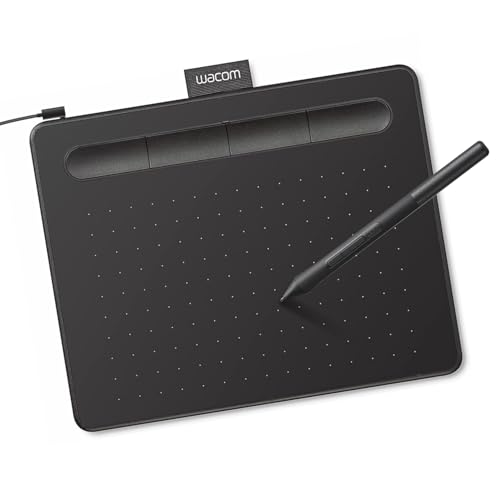 WACOM Wacom Intuos Small, Wired Graphic Drawing Tablet with Pen +…
View on Amazon ↗
Listing names and images come from Amazon and are rechecked against the live listings; last checked Nov 8, 2026. No prices shown; the current price is on the listing.
Scope and limits. This guide covers the drawing app category as a whole, not any individual app, and it is written from general knowledge of how drawing software works. No product documents, reviews, or in person tests were used, so confirm any canvas size, layer count, or stylus support on the listing before you buy.